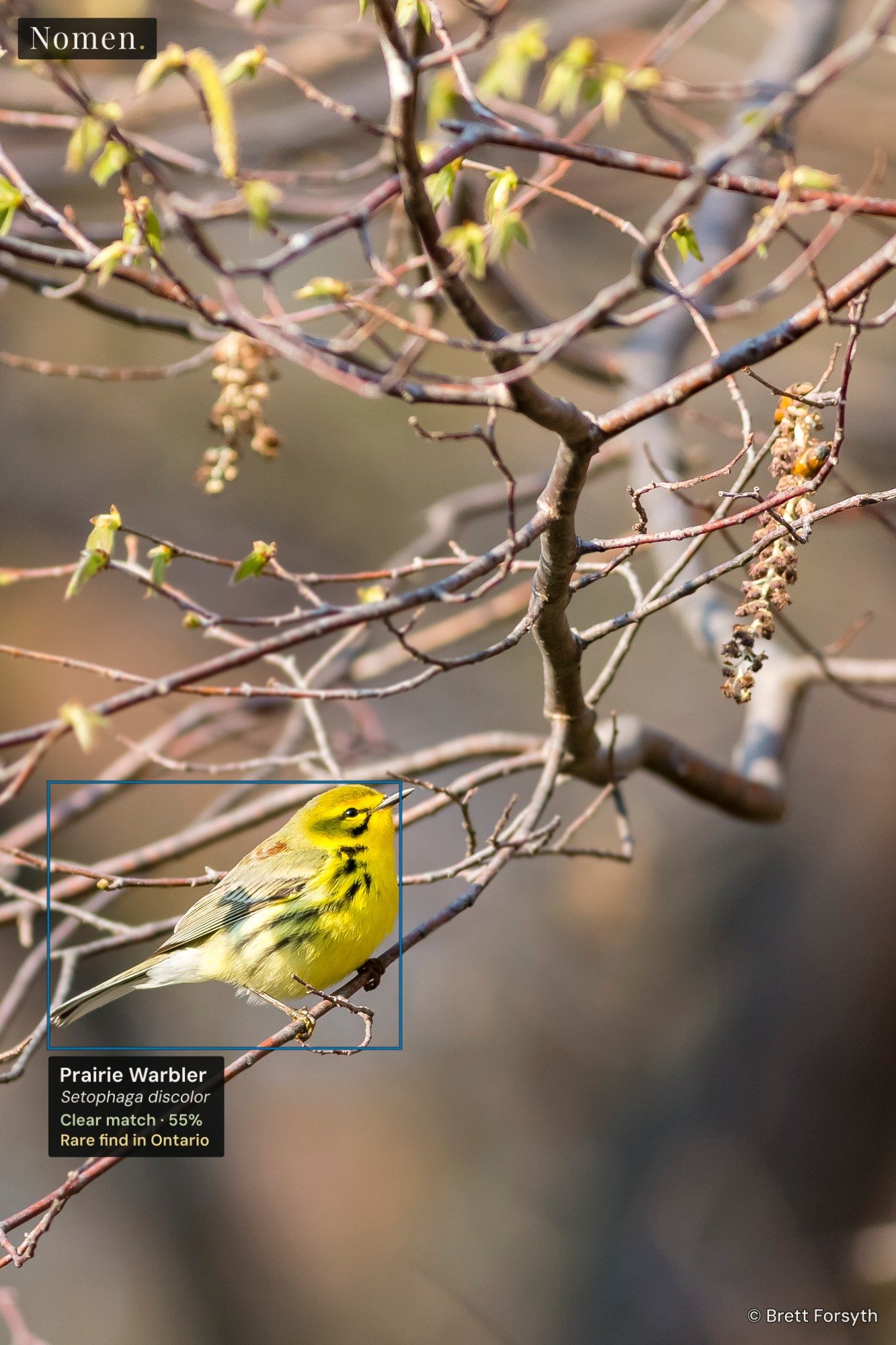
Two birds can look alike and both be found in Canada, but only one might turn up regularly in Ontario. In Canada, the U.S., Mexico and Australia, Nomen 1.2 can now show how often a suggested species has been recorded in the province, state or territory where you took the photo.
If you took the photo in Canada, the United States, Australia or Mexico, Nomen can now show how often the suggested species has been recorded in that province or state. It checks the photo’s GPS first, then Lightroom’s State/Province field. If both are missing, you can pick the location yourself. In Quick setup, typing “Ontario” will do it.
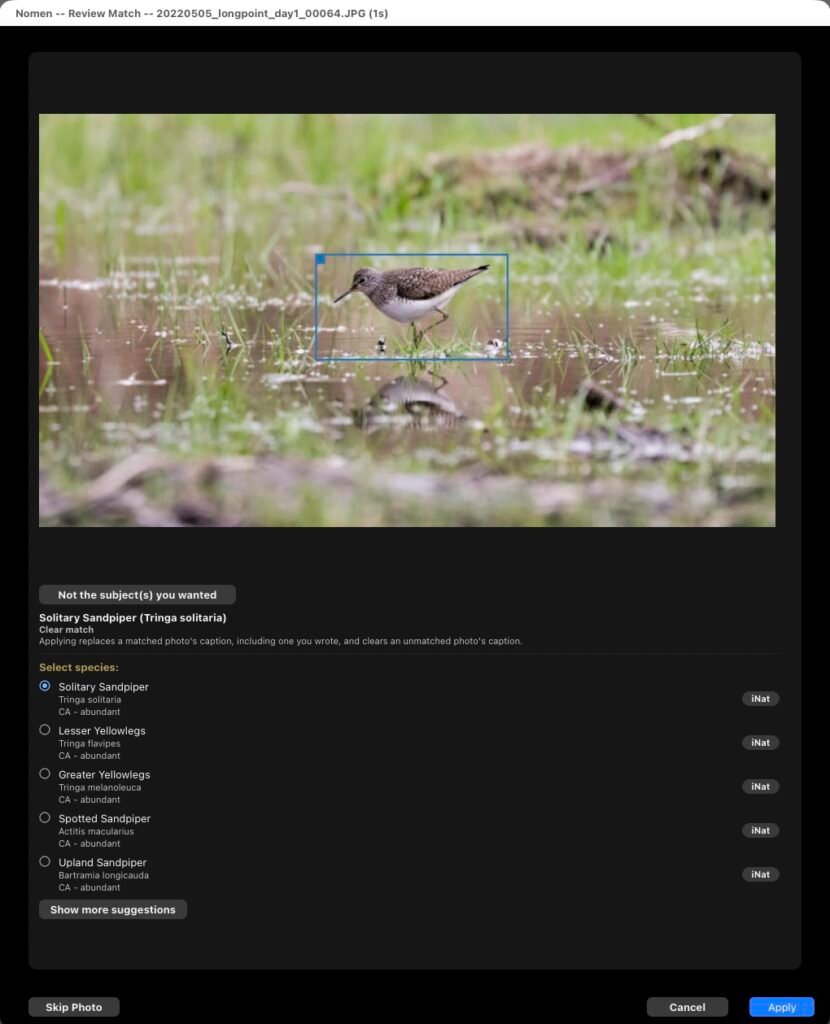
You’ll see the local rarity in Review where there are enough records. Elsewhere you’ll see the country result. A Rare find note can appear on a Clear match when the species has few or no records there. That’s a cue to take another look. The iNat button beside the suggestion opens a species search on iNaturalist if you want to compare photos.
If you use region keywords, Nomen now files the province or state under its country. For those Point Pelee photos, that’s Nomen › Region › Canada › Ontario. You can also filter on Local Rarity in Lightroom to find those saved matches again.
When a species changes names
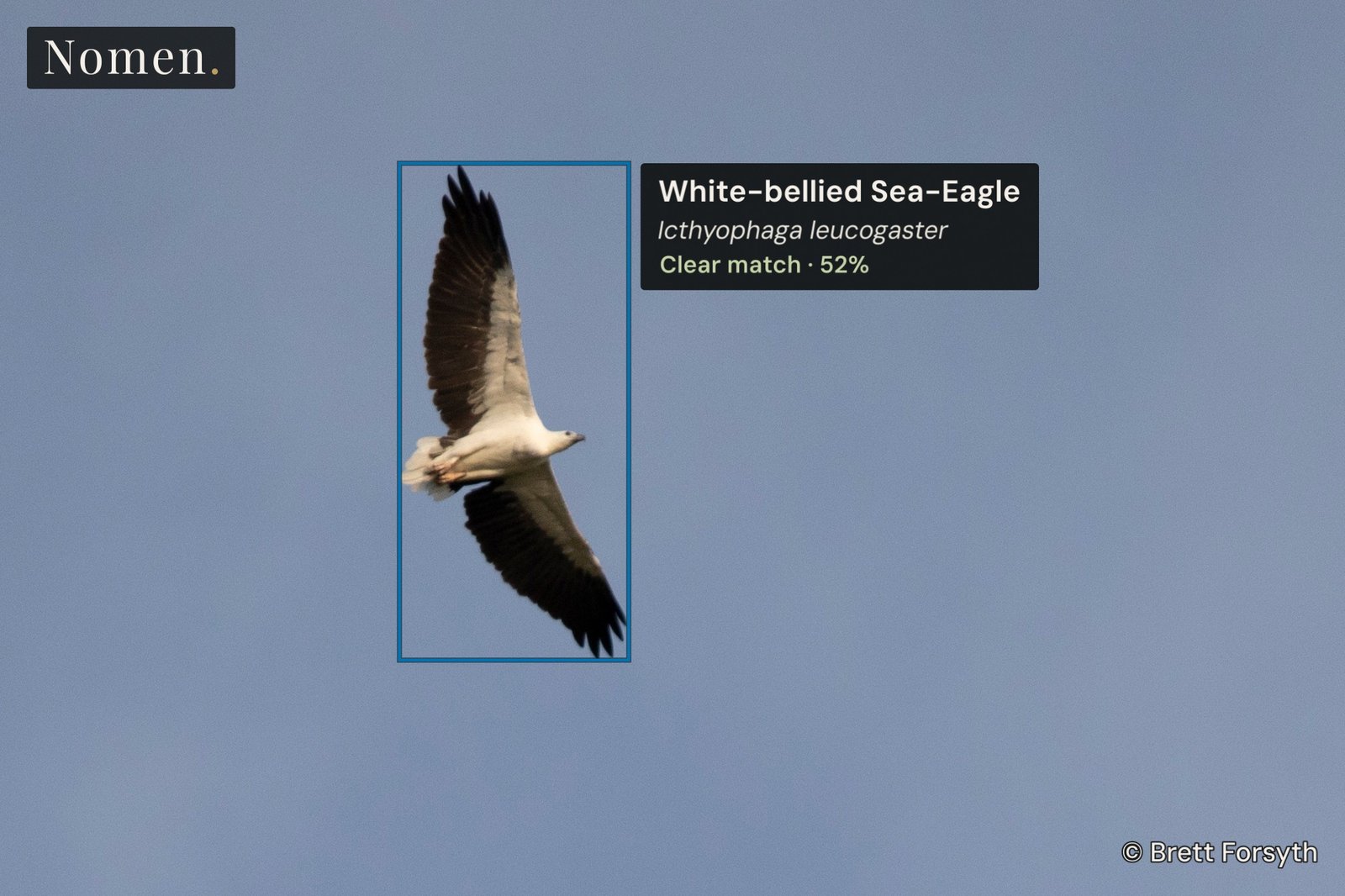
I photographed this White-bellied Sea-Eagle in Misool, Indonesia. In an older field guide you might find it under Haliaeetus leucogaster. Nomen now uses Icthyophaga leucogaster, the same scientific name you’ll find on eBird.
In Lightroom Classic, open File › Plug-in Manager › Nomen. Click Update plugin first, then Update assets to get the new names and location data. Coming from 1.1.0, the data download is about 125 MB. You can keep all your installed species packs.
If you’re on 0.14.1 or older, quit Lightroom and replace the whole Nomen.lrplugin folder with the copy from the download page. Reopen Lightroom and click Update assets.
Nomen 1.1 is out. It’s a free update for everyone on Nomen 1.x, and it changes how Nomen handles busy photos, edited JPEGs and trips without GPS.
Choose your own subjects, up to 8 per photo
A heron with a fish in its bill. A goby sharing its burrow with a shrimp. A bee on a flower. When a photo has more than one subject, the top match may not be the one you wanted.
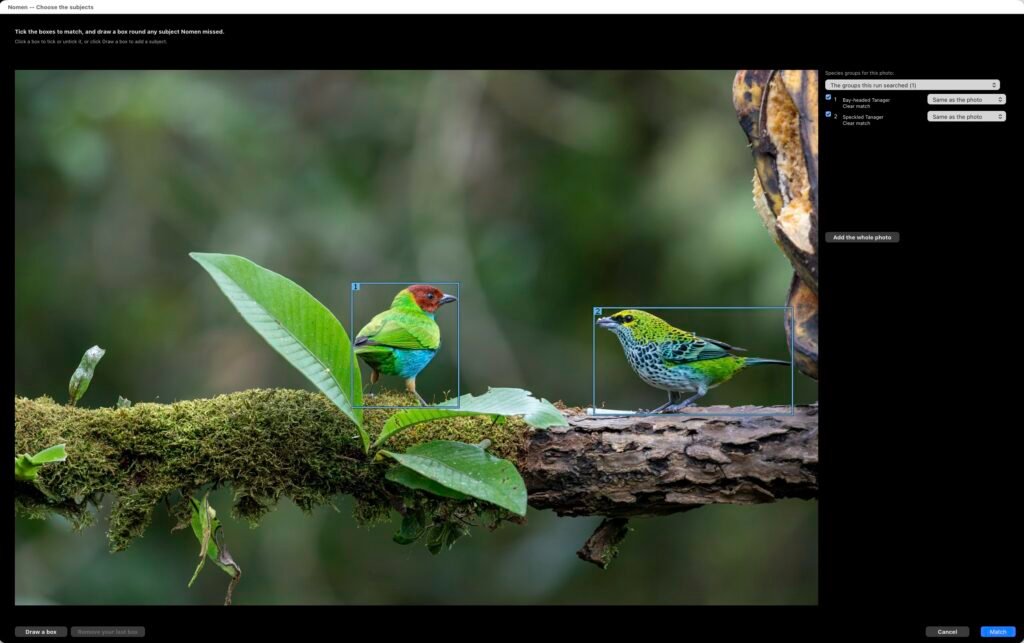
In Main subject and Every subject with Full review, press Not the subject(s) you wanted under the photo. Tick any of the numbered boxes, or draw your own, up to 8, and pick species groups for each: Birds for the heron, Fish for its catch. Nomen matches them all at once.
Choose the subjects, with both tanagers ticked. Draw a box adds any subject Nomen missed.
Your crop is what Nomen sees
Nomen now matches JPEG, PNG and TIFF files as Lightroom shows them, with your crop, rotation and edits, as it already did for raw files and PSDs. Crop in tight on a distant bird and that crop is what Nomen matches. Preparing these files is a bit slower, and a black-and-white version can match less well than the colour one.
A cropped and straightened JPEG, matched as Lightroom shows it.
Main subject and Every subject also look at each subject in more detail now, unless it’s tiny in the frame.
Suggestions for species without an English name
Plenty of reef fish, nudibranchs, corals, fungi and plants have only a scientific name. When a match isn’t a Clear match, Full review in Main subject and Fast now shows up to two more suggestions with no English name, and Show more suggestions lists up to ten.
If you pick a suggestion other than the top match, the photo gets that species’ own Confidence and Rarity. Nomen writes no match statement or Colour label for it.
Regions in Quick setup, and one keyword per trip
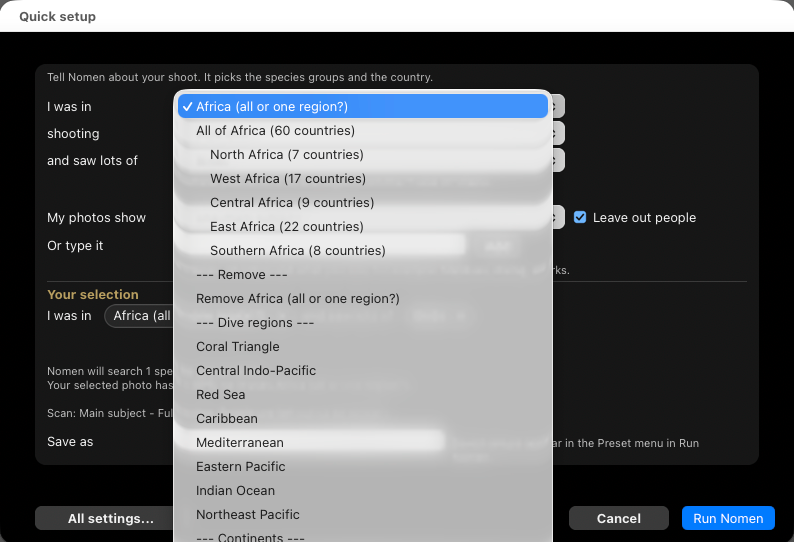
Shot a week in Kenya and Tanzania without GPS? In Quick setup, type or pick a continent (Africa, Asia, Europe, Oceania or the Americas), then choose all of it or one of its regions, indented under it in the I was in menu. Typing a region, such as East Africa, picks it straight away.
A matched photo without GPS then gets one keyword for the place you picked, such as Nomen > Region > East Africa, instead of one keyword per country. Run Nomen ticks that place’s countries; if you change those ticks, the photo gets one keyword per ticked country. The setting reads Tag photos with country or region under Nomen > Region.
Quick setup: all of Africa, or one of its regions.
Tidier keyword groups
Species that Nomen used to file under Common Names > Other in its keyword tree now go under their own group: chitons under Mollusks, millipedes under Insects & Arthropods, flatworms under Worms, bryozoans under Other Invertebrates, kelp under Algae & Other, skates and chimaeras under Fish, and fossil dinosaurs under Fossils. Caption hashtags follow the same groups, such as #Fish for a shark or #InsectsArthropods for a butterfly, and keep accented letters.
Refinements to bird matching
Update assets brings refreshed location data for birds whose scientific names changed recently, such as Double-crested Cormorant, Pelagic Cormorant and Cooper’s Hawk, so they rank as they should in the countries where they live. Species with only a few records in your country also get a fairer place in the list.
Smaller improvements
If Nomen can’t look for subjects in your photos, it says so (Subject search could not start) and offers Repair to download any files it needs.
A photo Nomen can’t get a preview of, such as an offline original, is skipped and the rest of the run carries on. Its Status Detail says why.
Simple survey and Deep survey leave a photo unchanged when it has nothing they can match, such as one close subject that fills the frame. Use Main subject for those.
The X on the progress bar now stops a run while Nomen prepares photos.
Help explains what photo GPS does: it picks the country the photo was taken in.
How to update
In Lightroom Classic, open File > Plug-in Manager, choose Nomen and press Update plugin.
Then press Update assets if it’s offered. From 1.0.x it’s about 120 MB.
On 0.14.1 or older? Install 1.1 by hand once: download the zip, quit Lightroom and replace the whole Nomen.lrplugin folder. Your species data, models and license stay in place.
If you haven’t been following along, Nomen is a plug-in for Lightroom Classic that names the wildlife and plants in your photos. You select some photos, run it, and it suggests a species for each one. You look over what it found and keep the ones you agree with. The names go straight into your catalog as keywords, with a caption ready to post.
Nomen overview (1:06). Plays from YouTube when you press play. What YouTube receivesTranscript
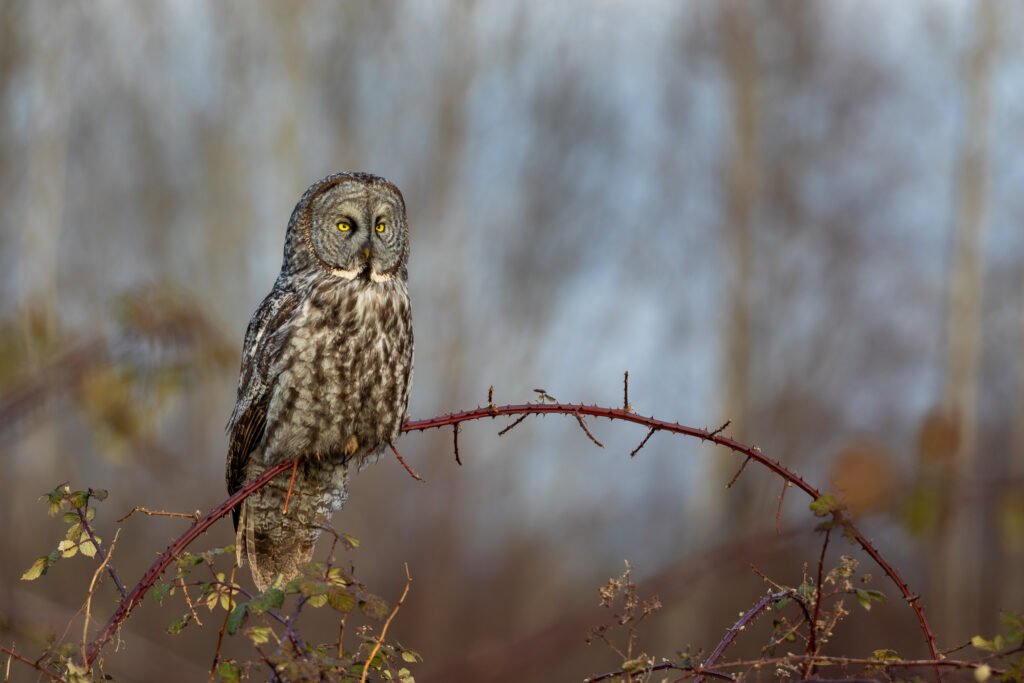
Nomen brings species matching into Lightroom Classic. Start by selecting a photograph in the Library. Click the Library menu, go to Plug-in Extras, and choose Run Nomen on Selected Photos. On the Species tab, select the groups you want to search. For this owl, we use Birds. For a photograph without GPS, choose a country on the Location tab to narrow the search. This photograph was shot in Canada. On Scan options, choose a matching type. Main subject matches the largest or most prominent subject. Choose Full review to inspect the result, then click Run Nomen.
Nomen suggests a species and draws a box around the subject it matched. This owl has a Clear match. Look at the alternatives before deciding what to keep. When you apply a match, the species names are saved as keywords, so you can search by common or scientific name. Nomen can also generate a caption, ready to share. Applying a match saves a caption in Lightroom's Metadata panel and replaces any caption already there. Your photographs and their species details stay together in your Lightroom catalog.
What it does
It knows more than 1.3 million species across 63 groups, on land and in the water: birds, mammals, insects, plants, fungi, fish, corals, nudibranchs and a lot more.
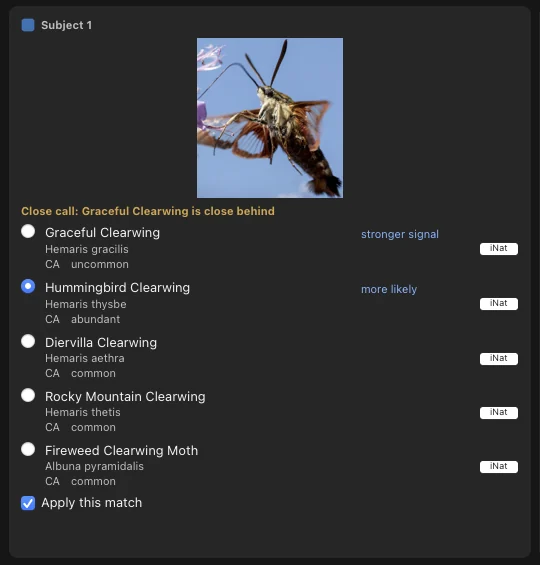
Every match tells you how sure it is, in words instead of a percentage. Clear match means nothing else came close. Close call names the species right behind it. Check this one means have a look yourself. You see the top five suggestions for each photo, and each one links to iNaturalist so you can check it.
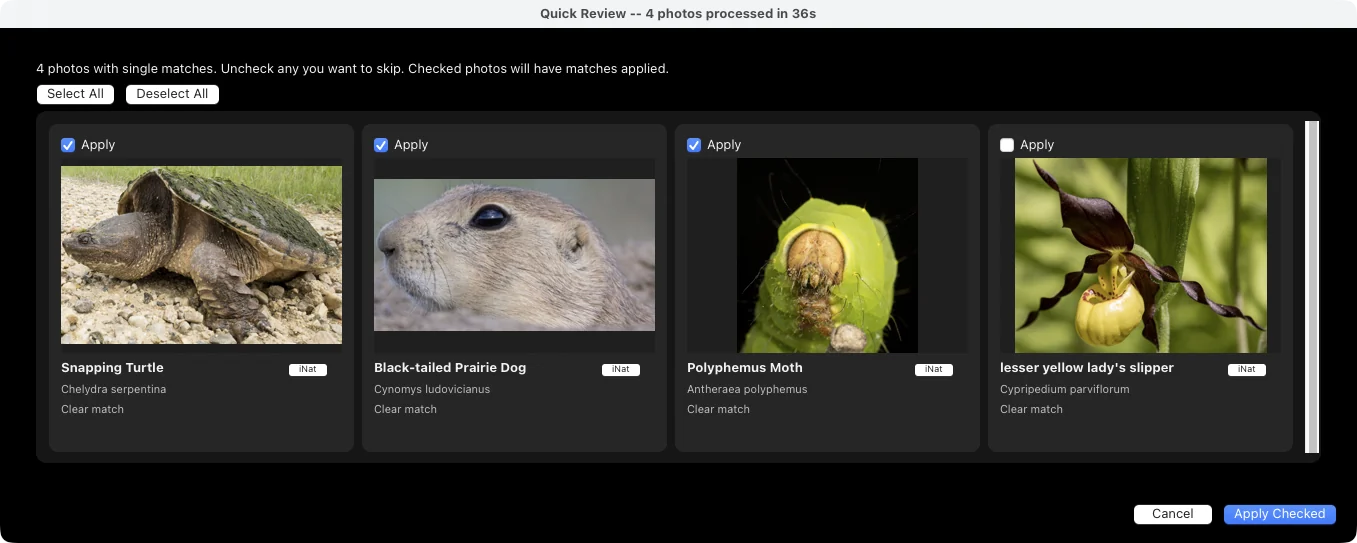
Quick review. Tick what you want applied, untick what you don’t.
If you read the Redstart post, you’ve seen what it can turn up in a folder you thought was finished. It’s just as useful on the folders you never got around to naming at all. I have plenty of both.
It works the way you shoot
Main subject for one animal in the frame, Every subject when there’s more going on, and survey modes for counting a flock.
If Nomen picks the wrong subject, you can point it at another box in Full review or draw your own.
It reads the country from your photos’ GPS, or you pick it, and ranks species by what’s been recorded there. A bird you shot in Costa Rica won’t come back as a look-alike that only lives in Southeast Asia.
Leave out people keeps divers and bystanders out of the matches.
A close call names the runner-up, so you know what to check.
What ends up in your catalog
When you apply a match, Nomen writes the species keyword in its taxonomic hierarchy and replaces the photo’s caption with one that includes the species, camera settings and hashtags. You can also add a common-name keyword tree. Every change goes through Lightroom’s own undo.
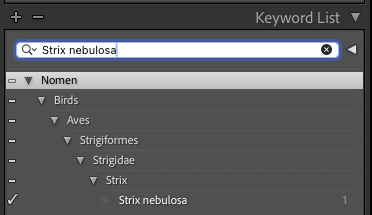
The taxonomy branch for a Great Gray Owl in Lightroom’s Keyword List.
Your photos stay on your computer
Everything runs on your computer. Nomen never uploads a photo, and matching works without an internet connection, so it still works on a boat or at a field station.
Nomen checks your license when it’s online and keeps working for 60 days after the last check. If the license server is ever retired, a final update removes the check, so the version you paid for keeps working.
Price
Individual is $59 USD for the first 100 buyers, then $79. It covers one person on up to two computers. Team is $199 USD for three named people, each with their own key. If you need more than that, email me and we’ll work something out.
You pay once. There’s no subscription, and every update within version 1 is free. Prices are plus applicable taxes, and there’s a 14-day money-back guarantee, so if it doesn’t work for you, you get a full refund.
If you’re in the UK or the Isle of Man, I’m still finishing UK VAT registration, so checkout can’t take addresses there yet. It’s coming soon.
What you need
Lightroom Classic 13 or later.
An Apple Silicon Mac with macOS 14 or later, or Windows 10 (22H2) or 11, 64-bit. Intel Macs aren’t supported.
About 6 to 7 GB of space for the matching engine and species data, downloaded once.
If you tested the beta
Thank you. A lot of what’s in 1.0 is there because of your reports, your photos and your patience with my early builds.
To update on 0.14.2 or later, open File > Plug-in Manager > Nomen and press Update plugin. On anything older, download Nomen.zip and replace the whole Nomen.lrplugin folder once. Then press Update assets. The species data downloads once more, about 4.5 GB, because it now comes from Nomen’s own servers.
If you have a beta license, it keeps working for good. You don’t need to buy anything.
What’s next
A few things I’m working on: drawing more than one box on a photo, including in Every subject; finding species in video clips; and a standalone app for people who don’t use Lightroom.
If you don’t use Lightroom, leave your email and I’ll send you one email when the standalone app is ready.
If Nomen gets one of your photos wrong, I’d like to hear about it. And if you run it on an old folder, let me know what it turns up.
I’ve been going back through some old bird photos with Nomen, and apparently I’ve been giving myself a little too much credit for my early identification skills.
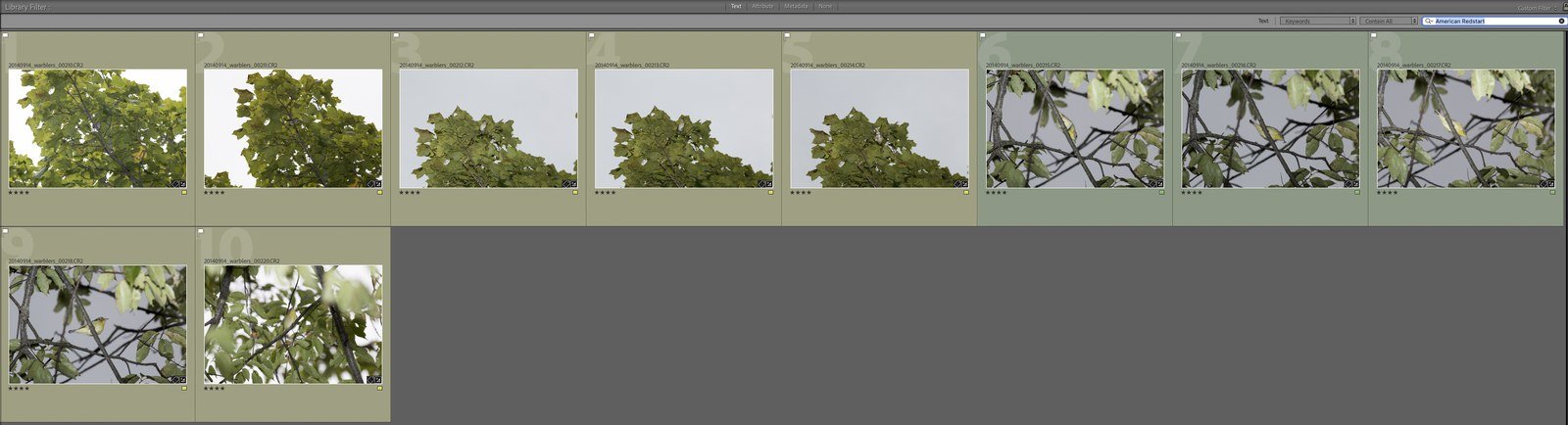
This batch is from September 2014. Fall migration, close to home, and I was still pretty new to birding. I had ten photos keyworded American Redstart. Looking at them now, five are Redstarts and the other five are Philadelphia Vireos.
So, half right.
I don’t remember what happened. Maybe I selected the whole bunch and added the keyword without checking every photo. More likely, I thought I was photographing the same species the whole time. I’d like to blame the keywording, but I’m not sure I get to.
Either way, they sat in my catalog like that for twelve years. They had a name, and I had plenty of other photos to deal with, so I never went back.
Ten frames from September 2014, all keyworded American Redstart. Five of them actually are.
Nomen picked up the mistake when I ran those photos through it. For this post, I went back and ran the whole folder again using version 0.15.0, with just the Birds group turned on.
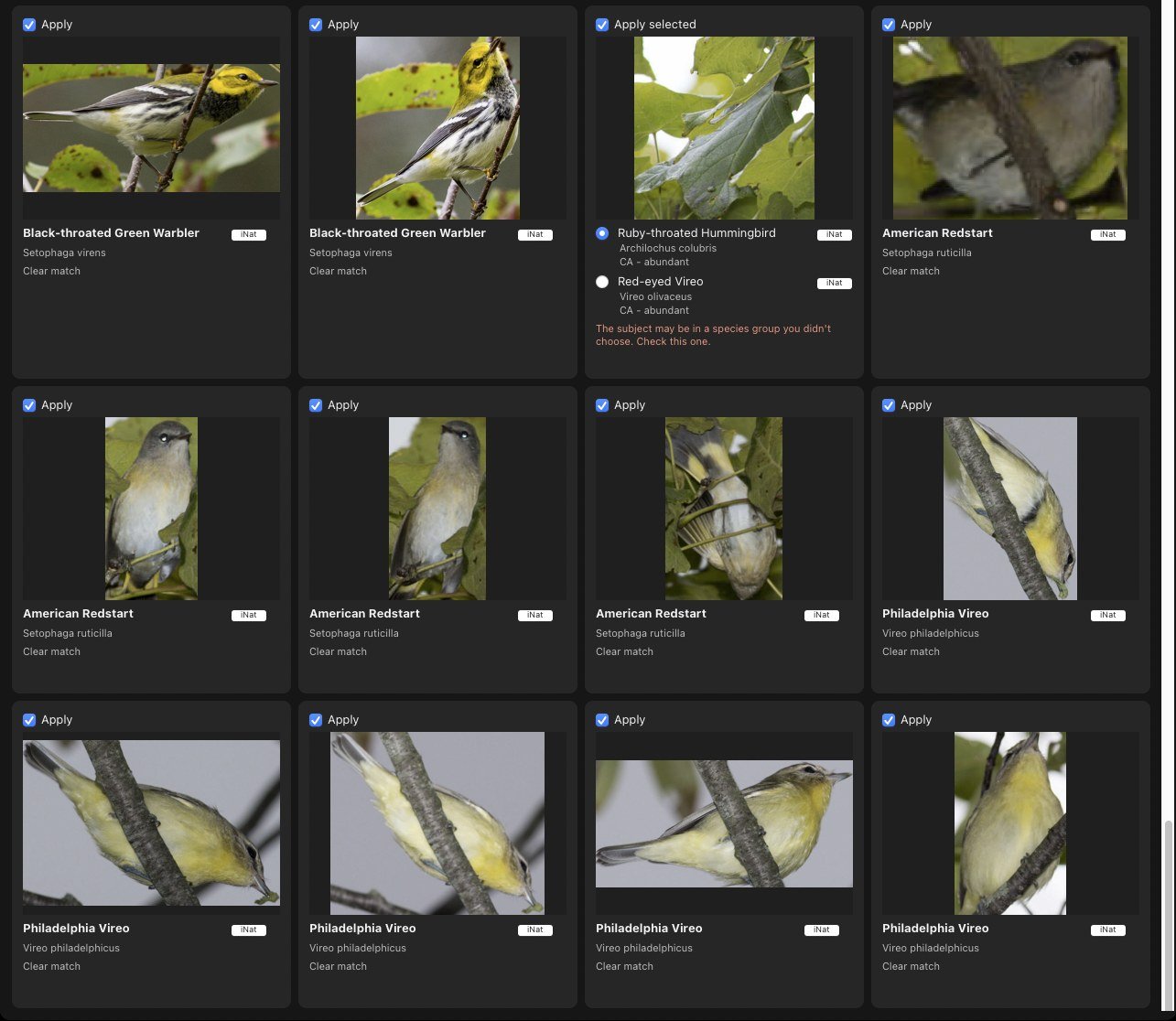
Of those ten photos, it came back with four American Redstarts and five Philadelphia Vireos, all marked Clear match.
The remaining Redstart? It put the detection box around a clump of leaves instead of the bird. Not particularly helpful, but it did flag the result as Check this one. Looking at what was inside that box, fair enough. I couldn’t identify a Redstart from those leaves either.
Quick Review results. The folder also includes two Black-throated Green Warblers; the ten photos discussed here are the five Redstarts and five vireos.
That’s a useful result for me. It caught five wrong IDs, and the frame where it missed the bird was one it told me to look at.
I’d mostly been thinking about using Nomen to get through the photos I hadn’t identified yet. There are plenty of those. But this has me going back through folders I thought I’d already finished, too.
My birding has improved since 2014. The keywords I put on those photos haven’t. And unless I happen to open an image again and notice something’s off, there’s nothing reminding me that I might have got it wrong.
With more than 100,000 photos, I’m pretty sure these aren’t the only five.
If you want to try this on your own catalog, pick an older folder you think is done and run it through Nomen’s Quick Review. Compare what comes back with the names you already gave the photos. Start with Check this one, but have a look at the others as well. Clear match is still something you can disagree with, and Close call shows you the species that came close behind.
Untick anything you don’t want applied before writing the keywords. Nomen adds its names alongside your existing ones, so you’ll need to remove any incorrect old keywords yourself. In my case, adding Philadelphia Vireo doesn’t make American Redstart disappear.
All of this runs on your computer. The photos stay there, and the matching works without an internet connection.
Anyways, five vireos correctly named. Now to see what else I was confidently wrong about.
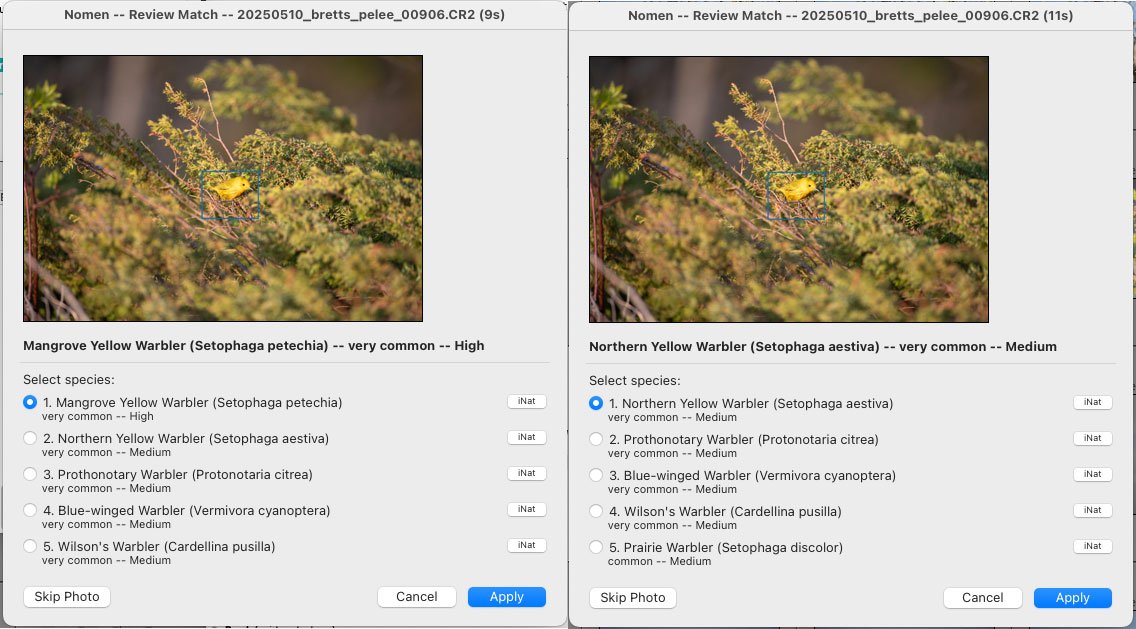
I ran a photo from Pelee through Nomen and it came back Mangrove Yellow Warbler. Confidently. Canada doesn’t have Mangrove Yellow Warblers. It was a regular Yellow Warbler, and Nomen was wrong in the worst possible way: sure of itself.
Here’s what happened.
What is a lump or split?
Taxonomists argue about what counts as a species. Sometimes two populations that look and sound different turn out to be one, so they get “lumped” into a single name. More often these days, the reverse. One species gets “split” into two or more, usually after genetic work shows they stopped interbreeding a long time ago.
Yellow Warbler is a recent split. What used to be one widespread species is now two. Northern Yellow Warbler (the one you see across Canada and most of the US) and Mangrove Yellow Warbler (Central America, the Caribbean, northern South America). They look almost identical in photos, but they don’t share a range.
Why Nomen got it wrong
Nomen uses two kinds of signal to rank species suggestions. Visual similarity: does the bird in your photo look like the reference images for this species? And geographic frequency: is this species actually common where you took the photo?
Both signals broke on the Yellow Warbler split.
Visually, the two birds are basically inseparable in a single frame. The photo can’t tell them apart and neither can the AI.
Geographically, the observation data I was leaning on still filed Canadian Yellow Warbler sightings under the old combined scientific name. So the frequency signal confidently pointed to the wrong species. It wasn’t close. My data said Mangrove Warbler had 1.36 million observations in Canada. It has none.
The fix
Three things changed.
Frequency weighting got turned down. Visual evidence does the heavy lifting; rarity only breaks ties between near-identical species now, and every suggestion shows a rarity label (very common, common, uncommon, rare, not recorded).
I switched the bird-counts source to one that better reflects the new split, and kept the old source for everything that isn’t a bird.
The part that actually fixed Yellow Warbler. I added a species-list filter. For each country, Nomen now pulls a confirmed species list for that region and drops any bird the list doesn’t include. That removed about 46,000 stale post-split entries like Mangrove Warbler in Canada, and added about 10,000 species that had been missing.
The result
Same photo. Same software. Different data. Mangrove Warbler isn’t even a candidate in Canada anymore, because the regional checklist confirms it doesn’t occur there.
If Nomen suggests a species that seems out of place, let me know through Support. Tell me which species Nomen suggested and where the photo was taken so I can check the records.
Nomen is in closed beta, and as of today it runs on both macOS and Windows.
If you shoot wildlife or nature in Lightroom Classic, here is what it does: select your photos and run Nomen, and it writes species names and keywords straight into your catalog, with a caption ready to post. It knows more than 1.3 million species in 63 species groups, on land and in water. Everything runs on your computer. No photo is uploaded, and matching doesn’t need the internet.
The beta is free. In return I’m asking for honest feedback on what works, what breaks and what’s missing.
What I need most right now: testers across different species groups (not just birds), different regions, and both platforms. Windows is new and needs real-world hours.
Cookies on nomenapp.com
We’d like to use Google Analytics to see how people use this site, and the Meta Pixel to measure our ads and show them to people who’ve visited. Neither loads unless you say yes. The Nomen plugin itself never sends usage data. Privacy policy
Your browser sends Global Privacy Control, so Advertising stays off unless you tick it here.