How Nomen names your photos.
Nomen is for wildlife photographers with more photos in Lightroom Classic than they’ll ever get through by hand, who still want the final say on every ID.
Match across 1.3 million+ species, on your machine.
Nomen matches with BioCLIP 2, an open vision model built for recognizing living things. It runs on your computer, and nothing is uploaded. Its 63 species groups cover terrestrial and aquatic life, from birds and mammals to nudibranchs and corals, and come in one download. In review you see the top 5 suggestions for each match, and the top one says how sure Nomen is: Clear match, Close call, or Check this one.
If no species clears the confidence threshold you set, Nomen saves the photo as unmatched instead of guessing.
Some genera are full of species that look almost the same. For 17 of them, among them epaulette sharks, lettuce corals, potter wasps and clearwing butterflies, Nomen runs an extra check built for that genus before it settles on a name.
Terrestrial
Butterflies and moths are separate groups. Beetles split by type. Plants split into trees & shrubs, wildflowers, grasses, ferns, orchids, cacti & succulents, and more. Fungi get three groups: Mushrooms, Lichens, and one for Other fungi. Plus birds, mammals, reptiles and amphibians, spiders, dragonflies, and the rest.
Aquatic
Marine life is split the same way, with separate groups for corals, sponges, nudibranchs, crustaceans, sharks and rays, and more. Reef flatworms, bryozoans and ribbon worms sit in the Flatworms and Millipedes group, so tick it for reef macro.
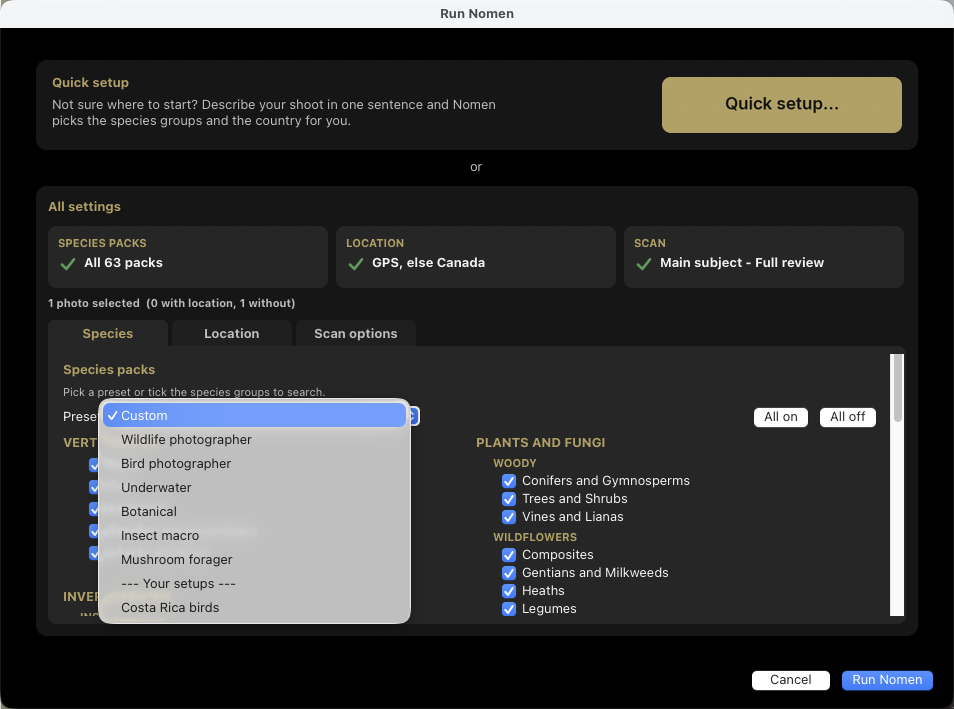
Each run searches the groups you tick. Start from a preset, such as Wildlife photographer (land animals), Bird photographer, Underwater, Botanical, Insect macro or Mushroom forager, then add or remove groups. Nomen remembers your pick for next time. All 63 groups arrive together in one download of about 4.5 GB through Nomen’s built-in download manager, and run entirely on your machine.
Fossils have a group of their own, with over a thousand extinct species such as ammonoids and belemnites. Nomen can match them on photos that carry a GPS location.
Your photos never leave your computer.
Nomen never uploads a photo. BioCLIP 2 and the subject finder run on your computer. The GPS lookup runs there too, so the coordinates of a nest or a rare plant stay with you. Nomen never receives your photos, so they can’t be used to train anything.
Activating and checking your license sends your serial key, a machine ID made from your hardware and the Nomen version. Activation also sends your platform and the machine name you typed, if any. Nomen asks nomenapp.com for the latest version number. It downloads the species data and models from Hugging Face, and new releases from nomenapp.com. The iNat button opens iNaturalist in your browser with the species name. That’s the whole list.
Matching needs no connection. Download the species data before you go, and Nomen works on a dive boat or at a field station, anywhere without internet. It checks your license when it’s online and keeps working for 60 days after the last check. Setup shows the date.
There’s no subscription either. You pay once. If the license server is ever retired, a final update will remove the check, so the version you paid for keeps working.
Describe the shoot in one sentence.
Quick setup chooses the species groups from one sentence you finish: I was in … shooting … and saw lots of … Each blank is a menu, and a last row, My photos show, picks one main subject, several subjects, or a flock or school, with a Leave out people box beside it. You can also type the names of places and animals, such as Raja Ampat or bald eagles, and Nomen looks them up.
Back from a dive trip, you might answer: I was in the Maldives, shooting underwater, and saw lots of sharks, fish and coral. Nomen picks the Underwater preset, which already holds all three, and sets the Maldives as the country for photos without GPS. Photos with GPS keep their own location.
Before anything runs, a preview lists the species groups Nomen will search and the country each selected photo will use. It also shows the scan mode. Click Run Nomen to start, or All settings… to check every option first. Give the setup a name and it appears in the Preset menu for your next trip.
On a new install, Quick setup opens by itself the first time you run Nomen. After that, it sits at the top of the Run Nomen window.
Works where your photos already live.
Nomen installs as a standard Lightroom Classic plug-in through the Plug-in Manager. There’s no separate app to launch and nothing to export. Select photos in the Library module, choose Run Nomen on Selected Photos. After the batch finishes, Nomen writes the results to your catalog once you confirm.
Uses the graphics hardware you already have.
On Apple Silicon Macs, the subject finder runs on the GPU through Metal and the species matcher runs through Core ML. There’s nothing to set up.
On Windows, Nomen uses the graphics card through DirectML for species matching when it can. The optional DirectX 12 subject-finding bundle makes finding subjects roughly ten times faster than without it.
To turn on the DirectX 12 bundle, press Download on its row in the Species Packs section of Nomen settings (about 330 MB). Quit Lightroom fully, then reopen it.
Five modes, from single subjects to whole flocks.
Nomen has five detection modes. Pick the one that suits the photo.
Fast matches the whole frame without looking for individual subjects. It’s the quickest mode, best when the subject fills the frame.
Main subject (recommended) matches the single most prominent species in the frame. Best for a clear subject, such as a perched bird or a lone animal on the reef. Nomen writes that one species to your catalog once you apply it.
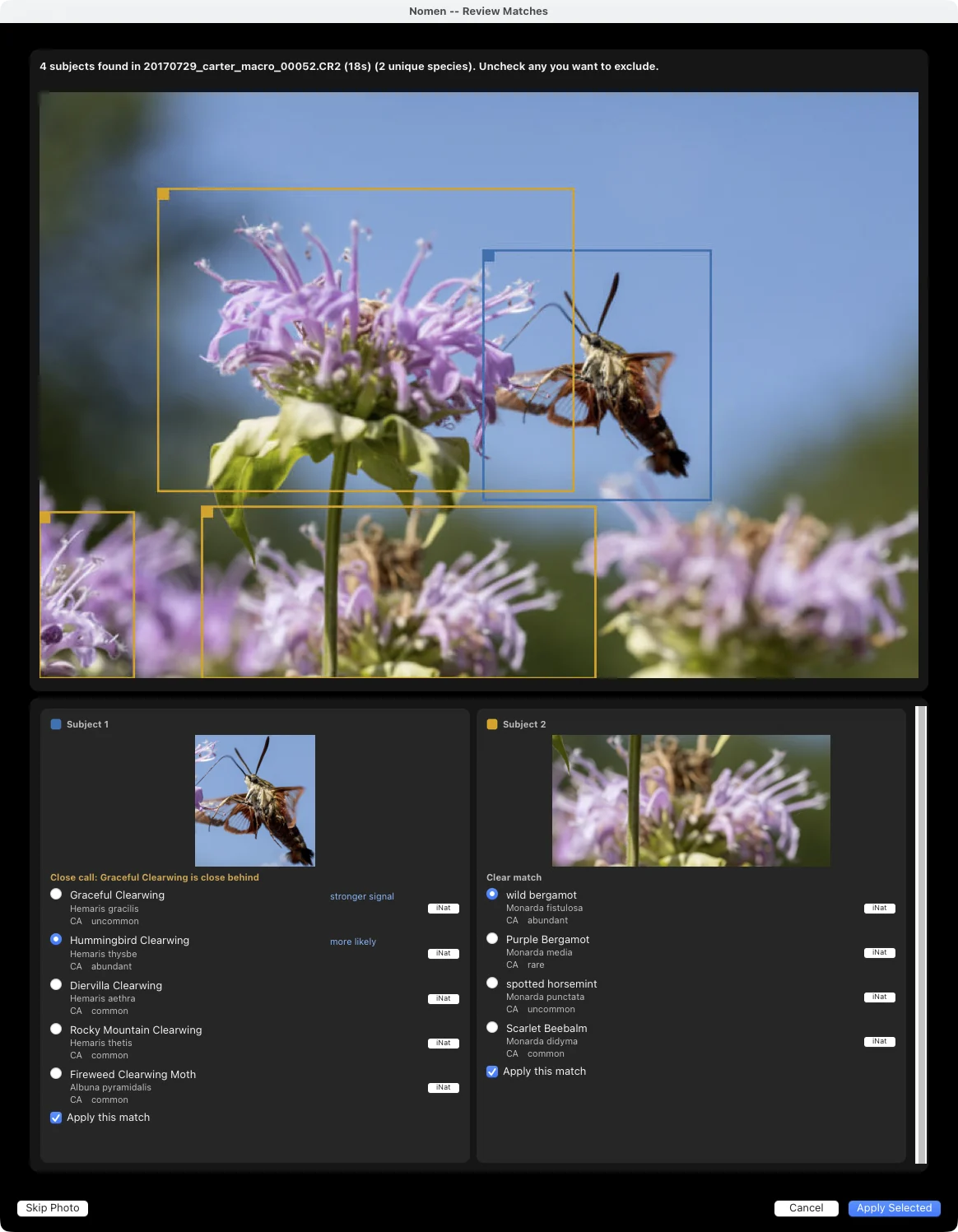
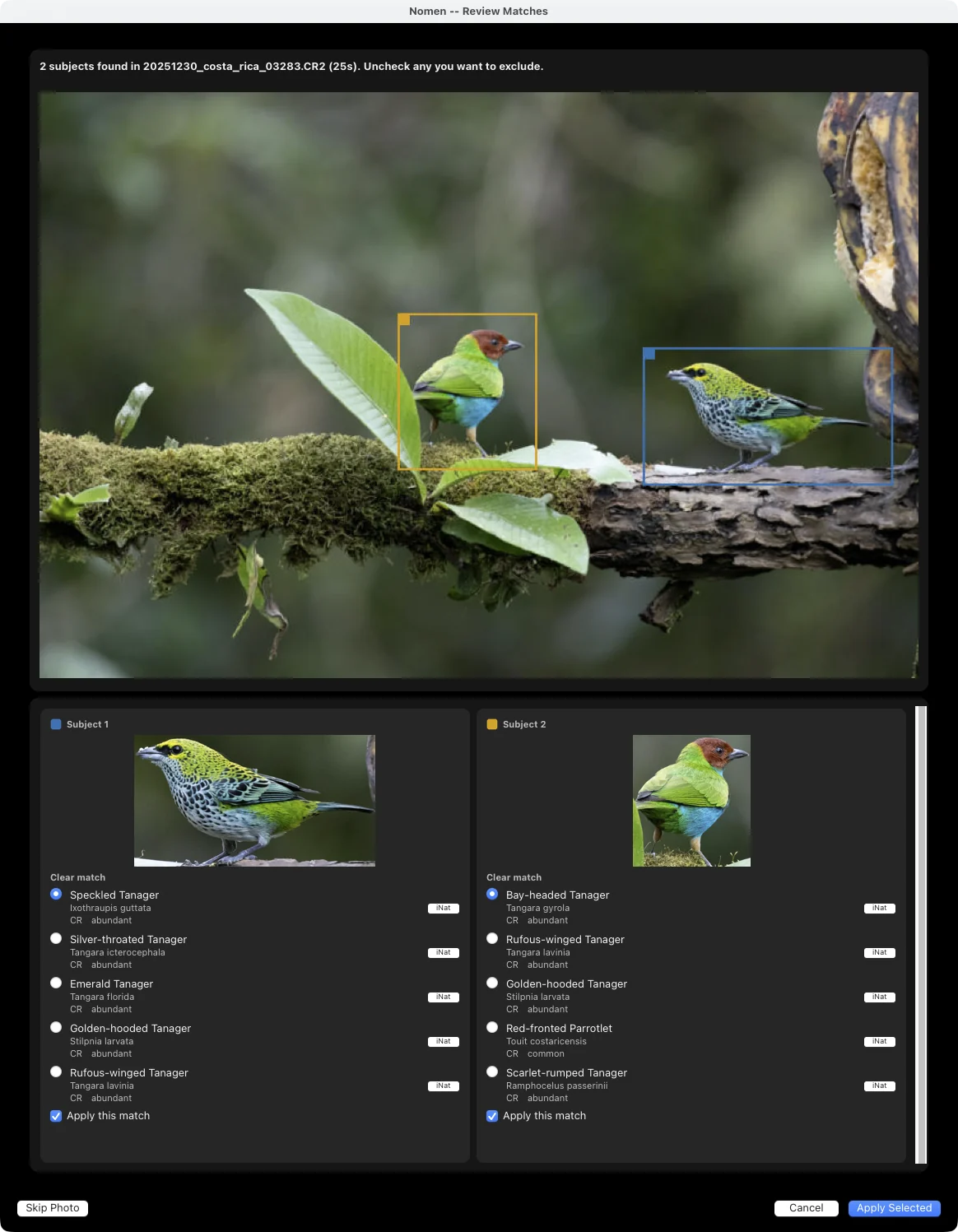
Every subject finds and matches all species in the photo. A reef scene with a moray and a cleaner wrasse, with a nudibranch behind them. A wetland shot with four species of wading bird. In Full review, Nomen gives each subject its own card and suggestions. Accept or reject each match individually. Nomen writes every accepted species as a separate keyword path.
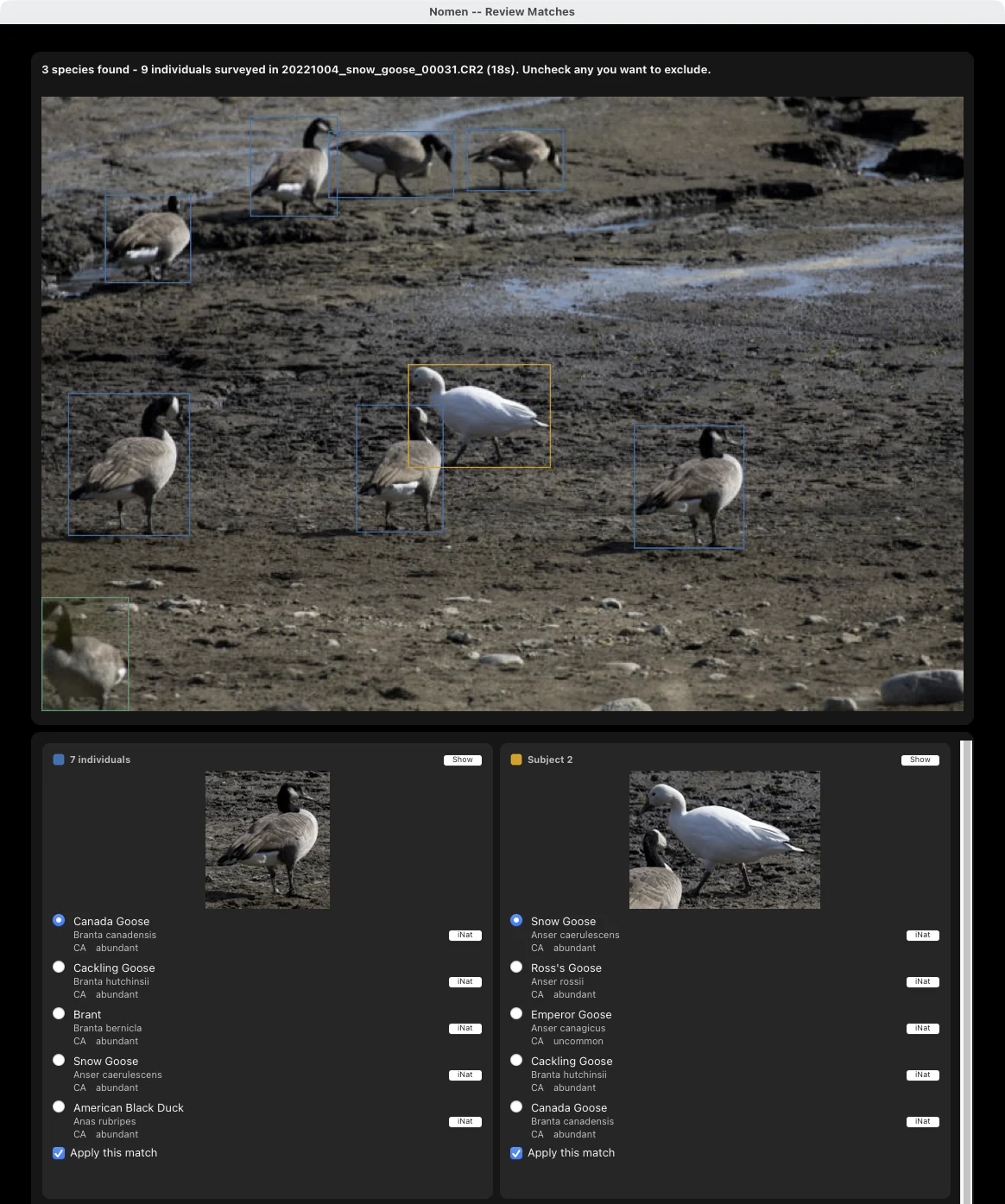
Simple survey counts and matches every individual in one pass over the whole image at standard resolution. It takes 10 to 30 seconds per photo and suits tens of subjects, such as a flock on a mudflat or a school of fish. Nomen shows a count for each species, with an overlay of what it found.
Deep survey uses the same counting workflow, but tiles the image and scans it at up to 8000 pixels on the long edge, where every other mode works from a 2048-pixel copy. It takes 1 to 3 minutes per photo. Use it when subjects are small or distant and Simple survey is missing them. It’s designed for bird flock photography, underwater reef surveys, wildlife census work, and research documentation. Counts for very small or very distant subjects are approximate.
All five modes write the same fields.
Keep people out of the matches. Tick Leave out people on the Scan options tab, and Main subject and Every subject run a separate check for people. A box on a person then never gets a species name, and nothing about that person is written to the photo. A photo containing only people is saved as unmatched, unless you confirm its whole-frame match yourself. The option is off by default. Scans take a bit longer with it on, and on about one photo in a hundred, usually an insect close-up, it sees a person who isn’t there. Leave it off and the diver behind the turtle, or the hand holding the beetle, can come back as a species. Fast, Simple survey, and Deep survey don’t run this check, and the box is greyed out in those modes.
Flowers get their own name. In Every subject, when the groups you tick include a plant group, a flower with a bee or a bird on it is matched with the visitor blanked out, so the animal can’t pull the flower’s match toward itself. The blanking happens only inside Nomen. The review shows your photo as it is. The flower gets its own name, and the visitor keeps its own box. With every species group ticked, Look for flowers too also boxes the flower an insect or bird is sitting on, while the animal stays the main match. It’s greyed out when only some groups are ticked, off by default, and scans take a bit longer with it on.
Every species group tells the subject finder what to look for. In Main subject and Every subject, each of the 63 species groups gives the subject finder its own search words, so the moth groups and the coral group look for different things. The survey modes use broader search words shared across related groups. When the groups you tick add up to more than 20 search words and include an animal group, Main subject and Every subject use general words instead: animal, plus plant and flower if a plant or fungi group is ticked. With many groups ticked, that finds the subject more often, and Every subject adds fewer wrong species.
Review as much or as little as you want.
Set the review mode on the Scan options tab of the Run dialog. It controls how much you look at before Nomen writes anything.
Don’t review skips the review windows. When the batch finishes, a summary shows matched and unmatched photos and asks you to Apply to Catalog. Nomen then writes every result. Best for batches you trust.
Quick review (grid) shows every single-subject match in a grid when the batch finishes. Each photo has a thumbnail and checkbox, and the grid adapts to your screen. Uncheck anything that looks wrong, then press Apply Checked. If the top two candidates are nearly tied, the card pre-selects the more likely one and keeps the other one click away. Total batch time appears in the grid title.
Full review (one at a time) opens a window for each matched photo after the batch finishes. You see the bounding box and top match with its match statement, plus ranked alternatives with their rarity tiers. Confirm the match or choose another suggestion. You can also skip the photo.
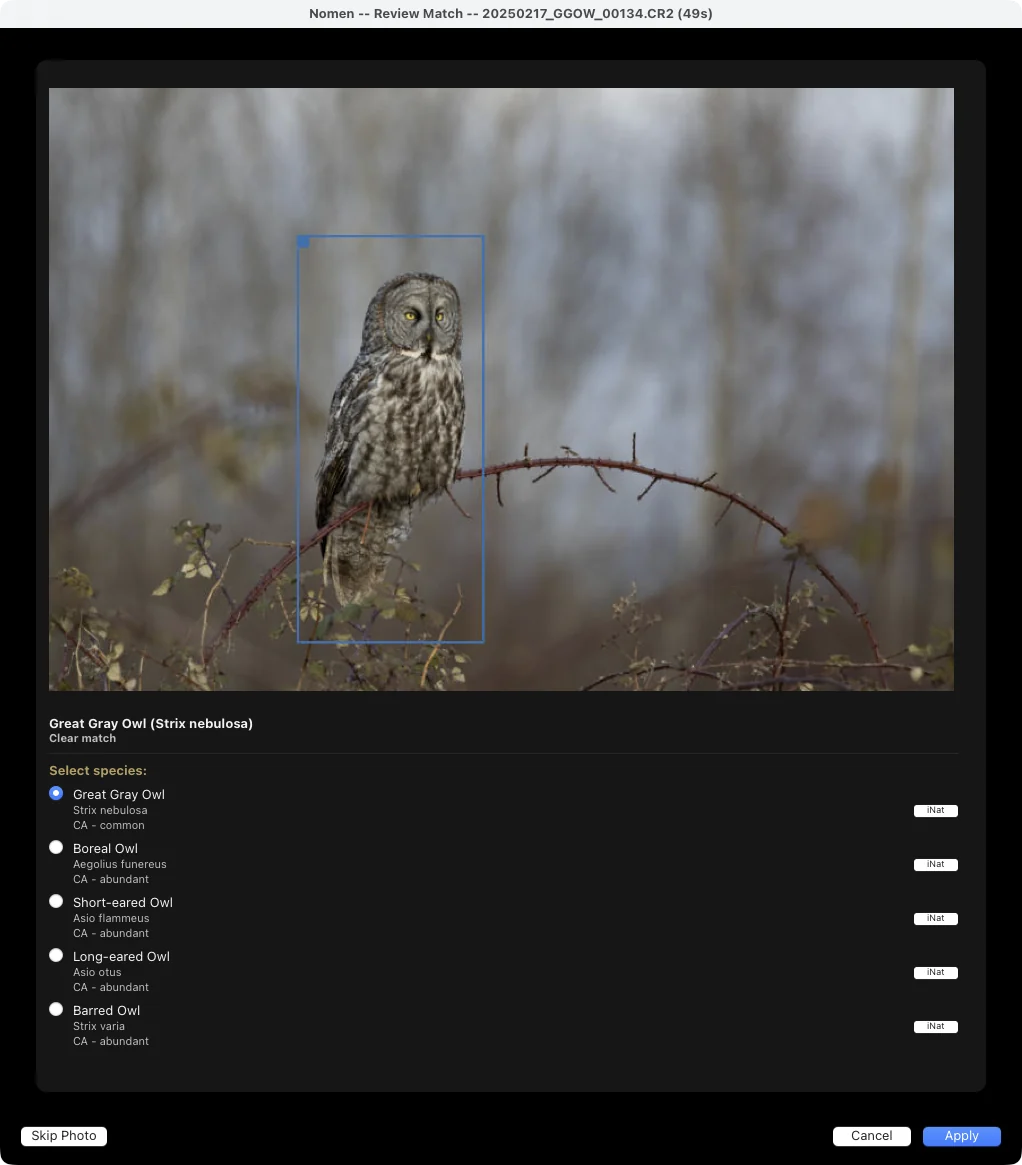
Close calls stay in the same window. Turn on Ask me when the top two matches are close. Then, if the top two matches are nearly tied and the top one isn’t a Clear match, the match window adds an Also search box naming the neighboring countries you haven’t searched yet. It only appears when a country is set. Tick the box and press Apply, and the wider search comes back in the same window for review. If it finds no strong match, the photo keeps its current result.
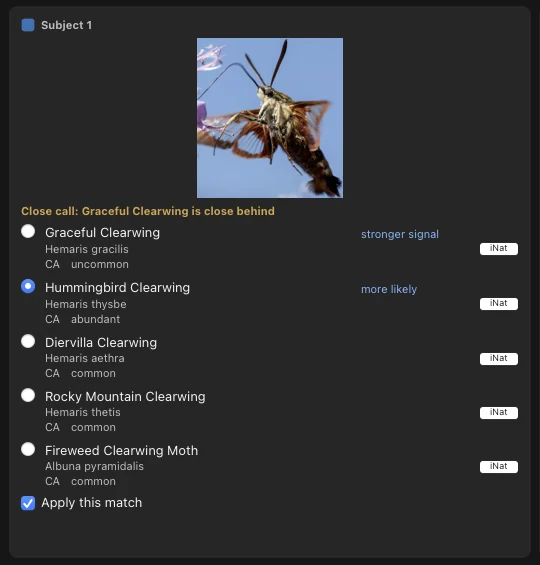
Fewer windows. In Full review and Quick review, Apply (or Apply Checked in the Quick review grid) is the only confirmation. When the batch finishes, a short message fades away. A summary window opens only if something failed.
Metadata written the same way on every photo.
- Caption: one ready-to-post caption with the common and scientific names, location, a line for your notes, camera settings, and hashtags. It replaces any caption already on the photo.
- Keyword hierarchies: a Taxonomy tree (Nomen > Group > Class > Order > Family > Genus > Species), plus Region and Common Names branches, both on by default. Multi-species photos get every species as its own keyword path.
- Multilingual keywords: 12 languages to pick from (English, French, German, Italian, Japanese, Dutch, Norwegian, Polish, Portuguese, Spanish, Swedish, Chinese), with a separate display language that picks the common name shown in review and written to the photo.
- Color labels: green for Clear match, yellow for Close call, red for Check this one, written as the photo’s label. They’re off by default. Turn them on under Matching and Keywords.
- Custom metadata fields: 20 fields, 9 of them searchable in Lightroom (Status, Scientific Name, Common Name, Confidence, Family Group, Region, Species Count, Detection, Rarity).
Social-ready captions, written for you.
Nomen formats a caption for sharing using the species name and the location from your photo’s IPTC location fields. It reads the camera model, focal length, aperture, shutter speed, and ISO from EXIF data, then adds hashtags for the species and its species group, plus #wildlife. Generate Nomen Caption copies the finished caption to your clipboard, ready to post.
Bargibant’s Seahorse (Hippocampus bargibanti)
Pin: Tulamben, Bali, Indonesia
Camera: NIKON Z 8 | 105 mm | f/16 | 1/200 sec | ISO 400
#BargibantsSeahorse #Fish #wildlife
Nomen leaves a blank line under the location for your notes. Write about the encounter or leave it empty. You were there. The caption just saves you the formatting.

When it isn’t sure, it says so.
Every match says how sure Nomen is, in words: Clear match, Close call, or Check this one. A close call names the species close behind. If you turn on color labels, which are off by default, Nomen writes it as the photo’s label too: green, yellow, or red. The review windows, the end-of-run summary and the labels all use the same words, and the percentage is in Lightroom’s Metadata panel. In Quick review, a doubtful match comes with a warning: “Nomen is not confident in this match. Check this one.” Simple survey and Deep survey results carry no statement.
When nothing clears your confidence threshold, Nomen leaves the photo unmatched instead of guessing. And if you’ve turned on close-call checks, a near-tie between the top two matches can prompt a search of neighboring countries. In Main subject, if you ticked only some species groups, Nomen also checks for photos with no strong match when the batch finishes. Their subjects may be in groups you didn’t tick, so it offers to search all groups for them before you review.
A Clear match means no other species came close. It doesn’t mean the match is right, so check the photos that matter to you.
In Every subject mode, each subject Nomen finds gets its own card with a checkbox, so you pick which matches to keep. With Leave out people ticked, a person gets a Person card with no species suggested.
Every suggestion has an iNat button that opens the species on iNaturalist, so you can check it without leaving review. Every change Nomen makes also goes into Lightroom’s own undo history, so Cmd-Z (macOS) or Ctrl-Z (Windows) steps back through it.
A dozen photos or a thousand. Same workflow.
Select a morning’s shoot or an entire field trip. Nomen matches the whole batch on your computer and writes the results once it finishes and you apply them. Turn on Skip already-matched photos to leave photos with earlier or manual matches alone. Your own IDs stay put.
Update plugin installs new releases in place on Mac and Windows, the matching engine included. Update assets downloads only what changed and removes pack files the catalog no longer lists. If the matching engine can’t start, Nomen tells you what went wrong in plain language.
Geography sharpens the match.
Nomen narrows each match to species recorded in the country where you took the photo, using occurrence data from 248 countries. A bird photographed in Costa Rica won’t be matched to a lookalike found only in Southeast Asia.
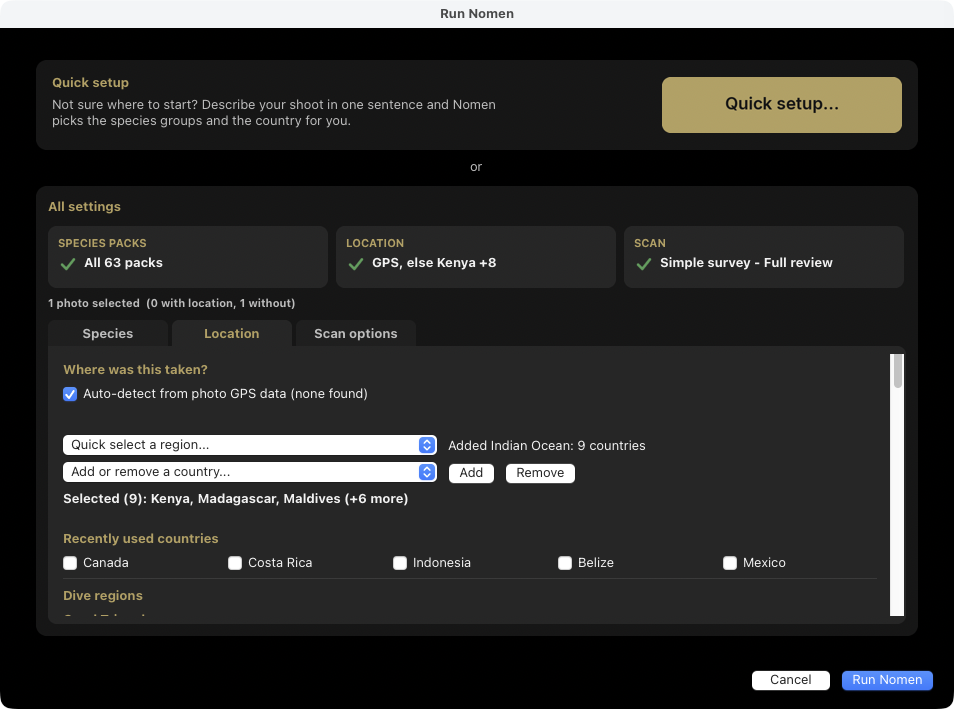
A photo’s GPS location decides its country. Detection is automatic and offline, photo by photo, so an import that spans several countries is handled correctly. The countries you tick on the Location tab cover photos with no GPS, and photos taken more than about 100 km offshore. Add any country from the list, or pick a region such as North America or Oceania to tick all its countries at once. Ignore country filter searches every country instead, overriding GPS and your ticks, at the cost of speed and the local ranking. If no photo has GPS and no country is set, Nomen asks before the run starts instead of silently searching the whole world.
Local records shape the ranking. Of two species that look alike to the model, the one recorded more often in your country ranks higher, and a species with three or fewer records there drops well down the list. That only reorders the suggestions, never whether a photo matches, so if you have photographed something genuinely rare for your country, look past the top match. When local records lift a look-alike to the top, its confidence reading is its own, so a doubtful pick shows a lower band. When a country is set, each suggestion also carries a rarity tier (very rare, rare, uncommon, common, or abundant) from GBIF and iNaturalist records for that country, so you can judge a result at a glance. To keep rare species out of the suggestions altogether, tick Hide matches rarer than on the Scan options tab and pick a tier. It trims the suggestion lists but never removes a subject Nomen has matched, and species with no rarity data are always kept.
Underwater photographers can tick a dive region (Coral Triangle, Red Sea, Caribbean, and others) on the Location tab. The Caribbean region includes Bonaire, Curacao, Aruba, Sint Maarten and the other dive islands, and overseas territories count as their own country rather than their parent’s. If no strong match is found in your country, Nomen offers to search neighboring countries before giving up.
Start with your most recent trip.
Download the plugin and activate your license. Then run Nomen on the shoot you remember best.
Acknowledgments
Nomen is built on open research. BioCLIP 2, an open vision model for living things, matches species. Grounding DINO, an open object-detection model, finds subjects. Both run locally on your machine. Thanks to the researchers who released them openly.