Documentation
How to install and set up Nomen in Adobe Lightroom Classic, and what each setting does. This page covers the current Nomen release in more detail than the in-app Help.
System requirements
- Adobe Lightroom Classic 13.0 or later
- macOS on an Apple Silicon Mac (Intel Macs are not supported), or Windows 10/11
- About 5.8 GB of disk space on a Mac or 6.6 GB on Windows once installed: the matching engine plus about 4.5 GB of species data. A download needs about 10% more free space than its size.
- Internet connection for the first downloads and license activation. Matching works offline. Nomen checks your license when it’s online and keeps working for 60 days after the last check.
- A valid Nomen license key (purchased at nomenapp.com)
Installation
Step 1: Download the plug-in
Download the latest Nomen release from the Download page. A single .zip file contains the Lightroom plug-in bundle for both Mac and Windows.
Step 2: Extract and place the plug-in
Unzip the download and place the Nomen.lrplugin folder in a permanent location. A dedicated Lightroom Plug-ins folder in your home directory works well.
Step 3: Add to Lightroom
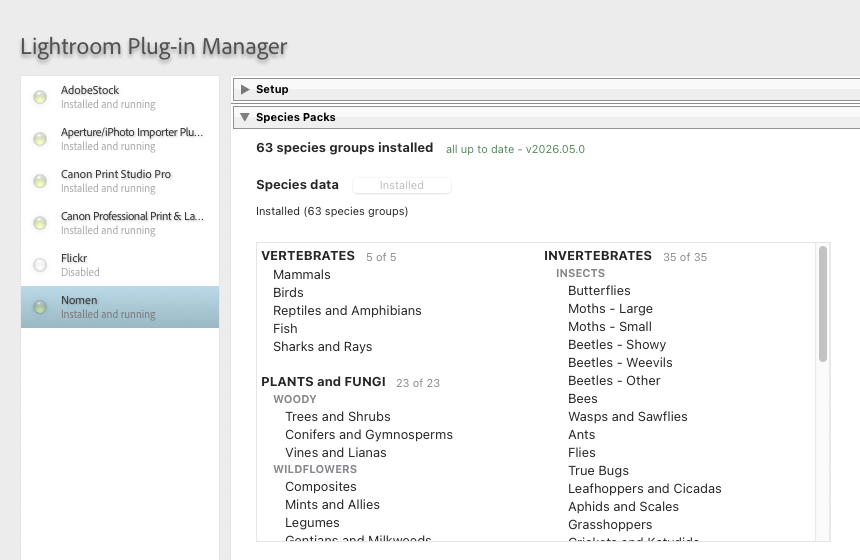
In Lightroom Classic, go to File > Plug-in Manager > Add, navigate to the Nomen.lrplugin folder, and select it. If the plug-in shows a non-running status, try removing and re-adding it. Restart Lightroom after making changes.
Step 4: Activate your license
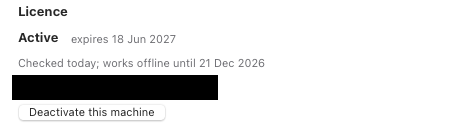
In the Plug-in Manager, select Nomen. In the Setup section, under Licence, press Activate licence and enter your serial key.
Step 5: Download species data
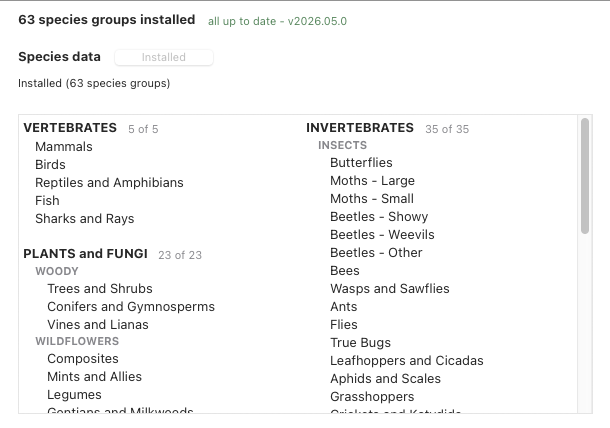
In File > Plug-in Manager > Nomen, go to the Species Packs section and click Download on the Species data row. Species data holds all 63 species groups in one download of about 4.5 GB, and the matching engine downloads with it. Nomen checks your free disk space first. If there isn’t enough, it says how much the download needs. Nomen can’t match until the download finishes. After that, it runs all matching locally on your machine.
Quick start
- Select one or more photos in the Library module.
- Open Library > Plug-in Extras > Nomen > Run Nomen on Selected Photos. You can also assign a keyboard shortcut (see below).
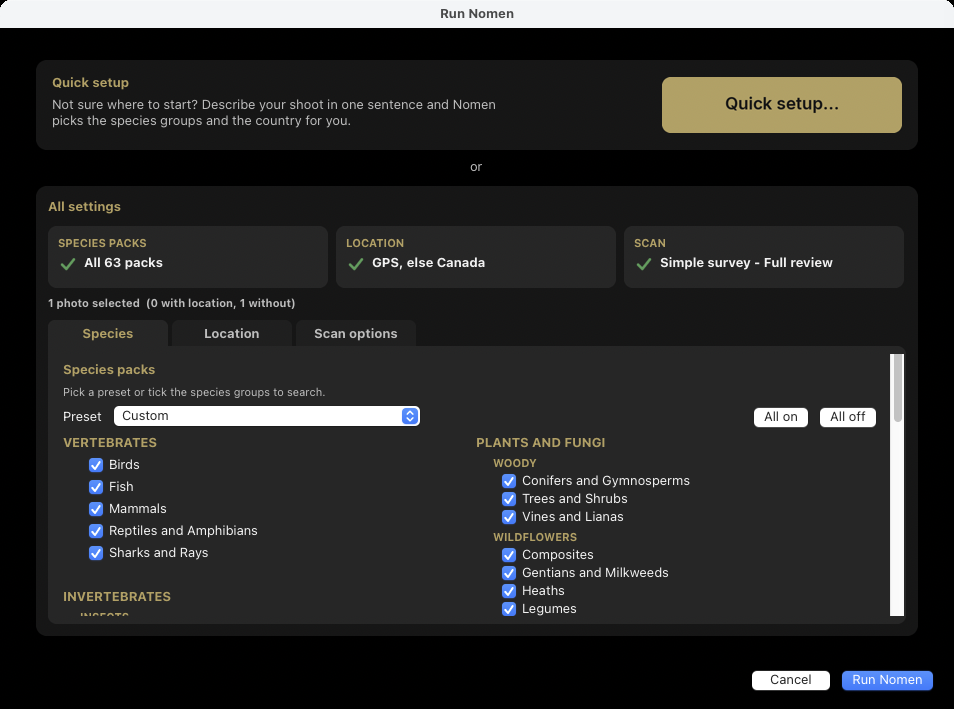
- On a new install, Quick setup opens the first time. Finish the sentence I was in … shooting … and saw lots of …, then click Run Nomen to start, or All settings… to see every option first. Later runs open the Run Nomen dialog, with Quick setup at the top.
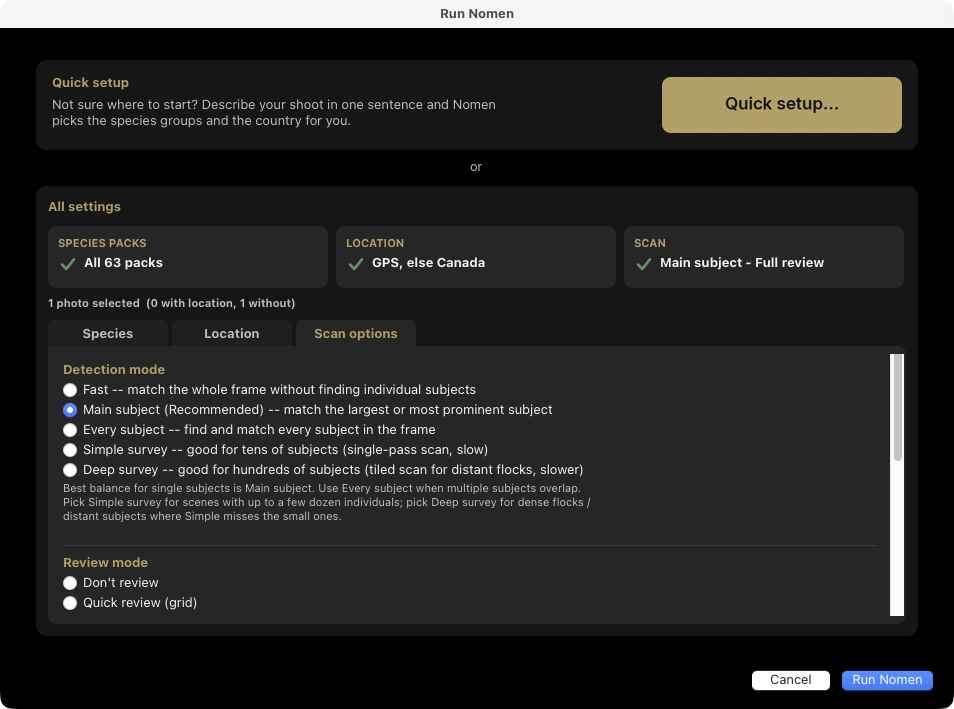
- In the Run Nomen dialog, pick a preset or tick the species groups to search on the Species tab. Run Nomen stays greyed out until at least one group is ticked. Set the country or region on the Location tab, then choose a detection mode and review mode on the Scan options tab.
- Click Run Nomen. When the batch finishes, review the matches and apply them, or confirm the summary if you chose Don’t review. Nomen then writes the matches to the catalog.
Quick setup
Quick setup turns one sentence about your shoot into settings: I was in … shooting … and saw lots of … It opens by itself the first time a new install runs Nomen. After that, click Quick setup… in the panel at the top of the Run Nomen dialog.
- I was in sets the country. Pick up to 8 places: dive regions, regions or countries. The country applies to photos without GPS and photos taken far offshore. Photos with GPS keep their own location. Leave it blank to keep the countries you already have.
- shooting picks a preset: underwater, wildlife, birds, macro, flowers, mushrooms, tide pools or hiking. Wildlife and hiking use Wildlife photographer, and birds uses Bird photographer. Tide pools uses Underwater plus Birds and Algae and Other.
- and saw lots of adds up to 20 species groups to that preset. The group menu puts the groups for your shooting choice first. Leave shooting blank and Nomen starts from the preset that holds the most of what you saw. When no preset does, or two tie, it searches just those groups.
- My photos show picks the scan: one main subject (Main subject), several subjects (Every subject) or a flock or school (Simple survey). If Run Nomen is set to Fast or Deep survey, the row opens on that mode and keeps it unless you pick another.
- Leave out people, beside My photos show, is the same setting as Run Nomen’s box (see People under Detection modes), and each saved setup keeps its own tick. It’s greyed out, with its tick kept, unless the row is on one main subject or several subjects, the two modes that look for people. While it counts, the scan line in the preview ends “People are left out.”
Each blank is one menu that shows your picks. To remove a pick, click the x on it under Your selection, or choose it under Remove in the same menu. You can also type into Or type it: places, what you were shooting and what you saw, in any order. Type names, not a sentence: Maldives, diving, sharks. Nomen knows everyday words such as manta and nudi, places such as Raja Ampat or the Galapagos, and English common names such as bald eagle. When it doesn’t know what you typed, it says so and suggests typing just the place. It never guesses.
The preview opens with Your selection: your picks as one sentence, each with an x. Under it, Nomen will search names the preset and any groups added to it, and the scan settings. It also says which selected photos use their own GPS and which use the place you picked. The line under the menus says when a group you saw is already in the preset. It also suggests adding flowers to a macro or wildlife setup with no plant group, so the flowers in your photos get their own names.
Run Nomen starts the run on the selected photos. It stays greyed out until the sentence names at least one species group. All settings… opens the Run Nomen dialog with your choices filled in, so you can check or change anything first. Besides the species groups and countries, Quick setup changes only the detection mode, through My photos show, and Leave out people. Review mode and the other options stay as they were. Pressing Enter does the same as Run Nomen. If the typing box still holds text, both add it first and show you what was added. Click Run Nomen again to start.
Type a name in Save as to keep a setup. Saved setups appear under Your setups in the Preset menu in Run Nomen. Picking one ticks its groups and sets its countries. To change or delete one, pick it in the Preset menu, then click Quick setup… and edit it or press Delete setup. Nomen keeps up to 12. Words and places Nomen didn’t know stay on your computer, listed only in Generate report.
Detection modes
- Fast. Matches the whole frame without looking for individual subjects. Quickest, and best when the subject fills the frame.
- Main subject (recommended). Matches only the most prominent subject. Accurate for a single animal in the frame.
- Every subject. Finds and matches every subject separately. Useful when multiple species share the frame.
- Simple survey. Counts and matches every individual in a single pass at standard resolution. Takes 10 to 30 seconds per photo and shows a species count summary.
- Deep survey. A tiled scan at up to 8000 pixels on the long edge, for distant or small subjects such as far-off flocks. Every other mode works from a 2048-pixel copy. The most thorough mode, but much slower: 1 to 3 minutes per photo.
People. Tick Leave out people on the Scan options tab, under People, to run a separate pass that sets people aside in Main subject and Every subject. It’s off by default, on new and existing installs alike. With it off, a diver, a hand or a bystander can come back matched to a species, with no Person card to flag it. With it on, a box on a person never gets a species name. Main subject sets people aside and keeps a subject a person is holding. In Every subject, a box on a person gets a Person card reading “Person. No species suggested for this box.” Parts of a person, such as a fin or a strobe arm, fold into that card. A photo of people and nothing else is saved as unmatched unless you tick or confirm its whole-frame match. Nomen writes nothing about a person to the photo, and summaries count people separately from subjects. Scans take a bit longer with it on. Fast, Simple survey, and Deep survey don’t run this pass, so the box is greyed out in those modes, with its tick kept.
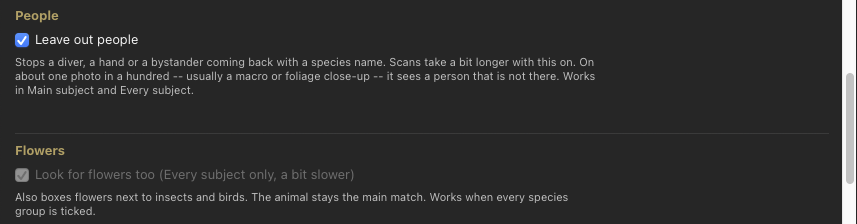
Flowers. In Every subject, when the groups you tick include a plant group, a flower box that also holds its visitor is matched with the visitor blanked out, so the animal doesn’t sway the flower’s match. This happens only inside Nomen: the review shows the photo unchanged. The flower gets its own name, and the visitor keeps its own box and name. Look for flowers too (Scan options tab, Every subject only, off by default) goes further when every species group is ticked: it also boxes the flower an insect or bird is on. It’s greyed out when only some groups are ticked. The animal stays the main match. Scans take a bit longer with it on.
Closely related species. Within 17 genera whose species are hard to tell apart, among them harvestmen, snake lilies, potter wasps, clearwing butterflies, cycads, epaulette sharks and lettuce corals, a per-genus check sharpens the match. When it changes the top match, the new match keeps the confidence of the one it replaced. It never promotes a species with three or fewer records in the photo’s country.
Review modes
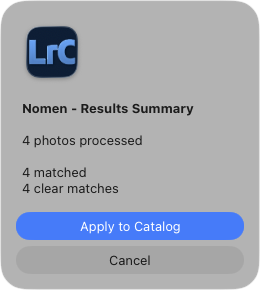
- Don’t review. No review windows. When the batch finishes, the Results Summary shows how many photos were matched, unmatched, or skipped. Press Apply to Catalog to write every result. Best for batch runs where you trust the model.
- Quick review (grid). After a batch in Fast or Main subject mode, a grid that adapts to your screen shows every single-subject match with a thumbnail and a checkbox. Uncheck anything you want to skip, then press Apply Checked to apply the rest. When the top two candidates are nearly tied, the card offers both and pre-selects the more likely one, as Full review does. Available in Fast and Main subject. Every subject, Simple survey, and Deep survey switch it to Full review.
- Full review (one at a time). When the batch finishes, Nomen opens a match window for each matched photo (“Review Match” for one subject, “Review Matches” for several). It shows the top match with its match statement and up to 4 ranked alternatives, each with its rarity tier (very rare, rare, uncommon, common, or abundant) when a country is set. Use the iNat button to check the species. Confirm the top match or pick another, then press Apply (Apply Selected with several subjects, where you can untick any you want to exclude). Or press Skip Photo. Pressing Apply Selected with every subject unticked also skips the photo.
Each subject’s suggestions are all of one kind, the same as its top match: all animals, or all plants, fungi and algae. A flower doesn’t get a beetle as its second choice.
Match statements. Every match in Quick review and Full review says how sure Nomen is: Clear match when no other species is close behind the top match, Close call: <name> is close behind when another species scored nearly as high, or Check this one when Nomen isn’t confident in the match. The Results Summary counts matched photos the same way. The percentage isn’t on the cards. It’s in the Confidence field of the Library’s Metadata panel, in the Nomen Results set. Simple survey and Deep survey results carry no statement and get no colour label.
In Full review and Quick review, Apply (or Apply Checked in the Quick review grid) is the only confirmation. When the batch finishes, a short message appears and fades away. Nomen opens a summary window only if something failed.
No strong match in the groups you chose. In Main subject, when a run searched only some of the species groups, Nomen checks each photo’s top match when the batch finishes. If some photos have no strong match, it asks once, before you review or apply anything, whether to search all species groups for them. Search All Groups matches just those photos again against every group, and you review the new results like any others. Keep Results leaves them as they were, and a Check this one card notes that the subject may be in a group you didn’t choose. Cancel Batch writes nothing. Runs that searched every group never ask.
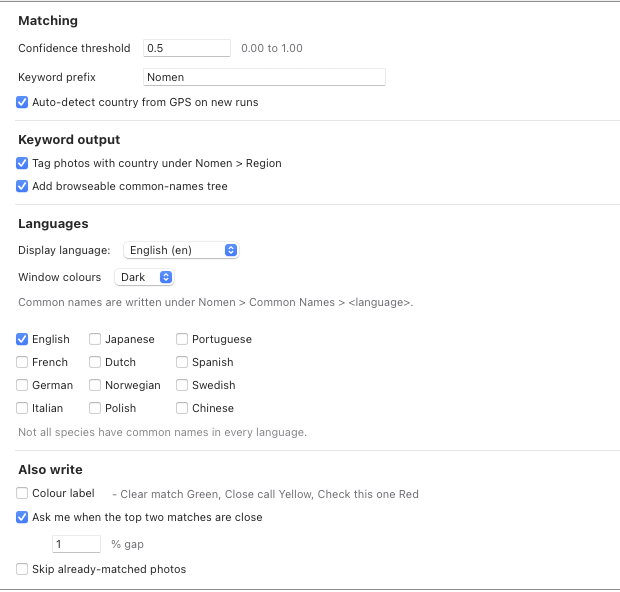
Close calls. Turn on Ask me when the top two matches are close in Matching and Keywords to let Nomen offer a wider search. The setting is off by default. If a country is set that still has neighbors to search, and the top two matches fall within the gap, the match window names the close call, shows the gap, and adds an Also search box naming those countries. Tick it and press Apply. Nomen searches those countries on the photo, with the species groups and settings of the run, and shows the new matches in the same window. If the wider search finds no strong match, the photo keeps its current result. It stays quiet on a Clear match. For photos with no match window (unmatched photos, single-subject photos in Quick review, and runs with Don’t review), Nomen uses a separate Expand Search prompt. Unmatched photos get this prompt whenever neighboring countries can be searched, even with the setting off.
Keyword output
Every matched photo receives keywords in up to three branches under the Nomen root.
Taxonomy tree (always written)
Nomen > <Group> > <Class> > <Order> > <Family> > <Genus> > <Species>
Region branch (on by default)
Controlled by Tag photos with country under Nomen > Region in Matching and Keywords. Nomen tags each photo with the country it was matched under, whether that came from its GPS location or from the countries you ticked, not with every country ticked for the run. Runs that use GPS with no country ticked get a Region keyword too.
Nomen > Region > <Country>
Common Names tree (on by default)
Controlled by Add browseable common-names tree in Matching and Keywords. Nomen writes one entry per language checked under Languages. Groups include Birds, Mammals, Fish, Reptiles & Amphibians, and others.
Nomen > Common Names > <Group> > <Language> > <Common Name>
Caption
Nomen writes one caption to the photo’s IPTC Caption field, replacing any caption already there. It contains Common Name (Scientific Name), a Pin: line from the photo’s IPTC location fields, a blank line for your notes, a Camera: line, and hashtags. Nomen clears the caption when it saves a photo as unmatched.
Species groups and species data
The Species tab of the Run Nomen dialog lists all 63 species groups as checkboxes, grouped by subject. Each run searches the groups you tick. A new install starts with nothing ticked, and Run Nomen stays greyed out until at least one group is ticked. All on and All off tick or untick every group. The Preset menu ticks a set for a shooting style: Wildlife photographer, Bird photographer, Underwater, Botanical, Insect macro, or Mushroom forager. Change any group and the menu reads Custom. Tick back to a preset’s exact groups and the menu shows that preset again. Setups you save in Quick setup appear in the same menu, under Your setups. Nomen remembers your choice the next time the dialog opens.
Wildlife photographer covers land animals: Mammals, Birds, Reptiles and Amphibians, Butterflies, Moths – Large, and Dragonflies, Damselflies. Bird photographer is Birds alone. Fish and sharks are in Underwater. Insect macro includes the Flatworms and Millipedes group, which also holds centipedes and springtails.
Species data holds every species group in one download of about 4.5 GB, and Nomen needs all of it to match. Download it in File > Plug-in Manager > Nomen, on the Species data row in the Species Packs section. The row reads Download or Update, with the download size, or Installed once every group is in place. An install that already has every group as a separate pack file is complete and needs no download. Update assets downloads only the files that changed and removes pack files the catalog no longer lists.
When older separate pack files duplicate what the species data holds, the Species Packs section offers a button such as Remove 63 pack files already in Species data (4.47 GB). It removes only those duplicates, and only after you confirm.
Reef flatworms (polyclads), bryozoans, ribbon worms, lamp shells, arrow worms and horseshoe worms are in the Flatworms and Millipedes group, so tick it for reef macro. Species from 71 wholly extinct orders, such as ammonoids and belemnites, are in the Fossils group, and Nomen can match them on photos that carry a GPS location.
Geographic filters
Filtering by location narrows results to species that actually occur where you shoot, which reduces false matches. The species index covers 248 countries. These controls are on the Location tab of the Run Nomen dialog.
- Auto-detect from photo GPS data. Reads each photo’s GPS location, fully offline, and searches the species of the country it was taken in. Nomen checks each photo separately, so it handles batches spanning several countries correctly. The countries you tick apply to photos with no GPS, and to photos taken more than about 100 km offshore. With no country ticked, a photo’s GPS country is used at any distance. Before a run with no country, Nomen warns you and says why: the photos carry no GPS location, or auto-detect is off.
- Quick select a region. Choose a region (such as North America or Oceania) or a dive region (such as Coral Triangle or Red Sea) to tick its countries at once. The line beside it says how many countries were added, and Clear selection, at the end of the same menu, unticks every country. The Caribbean dive region includes Bonaire Sint Eustatius and Saba, Curacao, Aruba, Guadeloupe, the British Virgin Islands, Sint Maarten and Saint Barthelemy.
- Add or remove a country. Pick any country from the list and press Add. Pitcairn Islands, Tokelau and Bouvet Island are picked this way. Overseas territories such as Martinique, Mayotte, Reunion and Svalbard count as their own country, not their parent’s.
- Last run’s countries. Nomen keeps the countries from your last run. While they’re in use, for photos without GPS or for every photo when auto-detect is off, the Location tab says “Using last time’s countries” and offers a Clear selection button.
- Ignore country filter. Searches every country, overriding GPS and the ticked countries. It’s slower, with no country rarity ranking and no search of neighboring countries. It stays ticked for your next run and keeps your country selections.
- Hide matches rarer than (on the Scan options tab). Pick a tier, from Very Rare to Abundant, and species rarer than it drop out of the candidate lists and the Suggestions metadata field. It never removes a matched subject, and species with no rarity data are always kept. If every candidate on a Full review card is hidden, the card keeps Nomen’s name and Apply leaves that subject alone.
Languages
Keyword languages (File > Plug-in Manager > Nomen, in Matching and Keywords, under Languages). A 12-language checkbox grid: English, French, German, Italian, Japanese, Dutch, Norwegian, Polish, Portuguese, Spanish, Swedish, Chinese. Each checked language adds a branch under Nomen > Common Names.
Display language. A separate popup controls which common name Nomen shows in review dialogs and writes to photo metadata. It defaults to English. Set it separately from the keyword languages you tick.
Other commands
All commands are under Library > Plug-in Extras > Nomen.
- Generate Nomen Caption. Copies the Nomen caption for the first selected photo to the clipboard. The photo must already be matched.
- Generate ID Cut Sheet. Asks for a folder, then saves a printable web page with a card for each selected photo and opens it in your browser. Each card shows the thumbnail, the common and scientific names, the rarity, the match statement, and the file name. Photos matched in Simple survey or Deep survey, or before Nomen 0.15.0, show no statement.
- Help > Nomen Documentation. Opens the in-app help dialog.
- Help > Check for Updates. Checks for a newer version of the plug-in.
Undo. Nomen writes through Lightroom’s own undo history, so Cmd-Z on macOS or Ctrl-Z on Windows steps back through its changes. Each photo is a separate edit. Undoing a large batch takes more than one step.
Keyboard shortcuts
macOS
Open System Settings > Keyboard > Keyboard Shortcuts > App Shortcuts. Click + and set:
- Application: Adobe Lightroom Classic
- Menu Title:
Run Nomen on Selected Photos(must match exactly) - Keyboard Shortcut: your preferred key combination
Recommended: Ctrl+Option+N (hold Control, Option/Alt, and N).
Windows
Lightroom Classic doesn’t support custom app shortcuts natively on Windows. Use a third-party tool such as AutoHotkey to map a key to the menu item.
Settings reference
Settings live in the Plug-in Manager: File > Plug-in Manager > Nomen, organized into four sections: Setup, Species Packs, Matching and Keywords, and Maintenance and Credits.
Setup
- Licence. Activate licence enters your serial key. Deactivate this machine frees an activation. The row also shows when Nomen last checked your license and the date it works offline until, such as “Checked today; works offline until 11 Dec 2026”.
- Install check. Run full check tests the install. A healthy install shows “All checks passed”.
- Updates. Update plugin installs a new release in place, matching engine included, and is greyed out while an update runs. Before 0.14.2 it left the matching engine as it was, so an install on 0.14.1 or older needs one update by hand (see the Download page). Update assets downloads only the files that changed and removes pack files the catalog no longer lists.
Species Packs
- Species data. One row that reads Download or Update with the download size, or Installed, then the species groups it holds.
- Remove … pack files already in Species data, with the space those files take. Shown only when older separate pack files duplicate the species data. Asks before removing anything.
- Windows only: the DirectML Runtime (Windows GPU) and Native DX12 GDino (Windows GPU) rows, each with a Download button. The DirectX 12 bundle makes subject finding roughly ten times faster. Restart Lightroom after installing it.
Matching and Keywords
- Confidence threshold. The lowest match score at which Nomen writes a species (default 0.5, range 0.00 to 1.00). Nomen compares this threshold with the raw match score, not the match statement.
- Keyword prefix. Root keyword for the hierarchy (default Nomen).
- Auto-detect country from GPS on new runs. On by default.
- Tag photos with country under Nomen > Region and Add browseable common-names tree. The keyword branches described above, both on by default.
- Languages. The Display language popup (default English) and the 12 keyword-language checkboxes.
- Also write: Colour label: Green for Clear match, Yellow for Close call, Red for Check this one. Survey results get no label. Off by default.
- Ask me when the top two matches are close, with a % gap field (default 1%). Off by default. See Close calls above.
- Skip already-matched photos. Off by default. When on, Nomen leaves already-matched photos alone, including matches you’ve corrected, and runs unmatched photos again. When off, Nomen matches every selected photo again. A manual match can be overwritten.
- Window colours. Dark (the default) or Light, for Run Nomen, Quick setup, the review windows and Nomen’s smaller windows. In Light, Run Nomen and Quick setup keep Dark’s layout in light greys, and the other windows take Lightroom’s own look. Title bars, alert boxes and scroll bars keep Lightroom’s colours. On Windows, Nomen draws its own buttons at the bottom of dark windows, and of Run Nomen and Quick setup in Light.
Maintenance and Credits
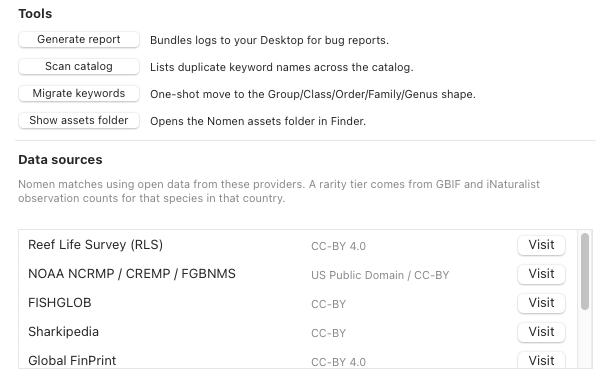
- Tools: Generate report, Scan catalog, Migrate keywords, and Show assets folder. Generate report saves a zip to your Desktop for bug reports. It holds the matching engine’s logs, your last 10 runs, the latest lines of the error log and, on a Mac, recent matching engine crash reports. It also lists the assets folder and the matching engine version in use.
- Data sources. Credits for the open data Nomen uses for matching. A rarity tier comes from GBIF and iNaturalist observation counts for that species in that country.
Workflow guides
Five walkthroughs, from your first match to taking Nomen into the field and working through a large backlog.
Troubleshooting
The matching engine will not start
Nomen checks its matching engine when the settings panel opens and when Run Nomen starts. If the engine can’t start, Nomen names the cause: “Nomen cannot run on this Mac” (Nomen needs an Apple Silicon Mac), “macOS stopped Nomen’s matching engine”, “Windows stopped Nomen’s matching engine”, “Nomen’s matching engine is missing”, or “Nomen’s matching engine is damaged”. Until the problem is fixed, species data downloads, Update assets, and license activation stay turned off. Open File > Plug-in Manager > Nomen and press Run full check under Install check in the Setup section. Then quit Lightroom fully, reopen it, and try again.
License activation fails
Check that your license key has no spaces before or after it, and that you’re online. If activation still fails, check whether you’ve used every activation for your tier. Press Deactivate this machine on a computer you no longer use, manage activations under My Account > Licenses at nomenapp.com/my-account/licenses/, or contact support.
Setup says Species data is incomplete
Nomen needs every species group installed before it can match. Open File > Plug-in Manager > Nomen and click Download on the Species data row in the Species Packs section. If only a few groups are missing, Nomen downloads just those. The first run you start before then offers this download once, and carries on when it finishes. Later runs point you back to this row.
Not enough disk space for the download
Nomen checks free space before downloading. Its message gives the space needed and the space available on the disk that holds the Nomen assets folder. To open that folder, click Show assets folder in Maintenance and Credits. Free up the difference and download again. If the Species Packs section offers Remove … pack files already in Species data, that also frees the space taken by older separate pack files.
A run stopped because a species group could not be searched
If a species group fails to load, Nomen restarts its matching engine and tries once more. If the group still isn’t there, Nomen stops before writing anything. It names the groups and says what to do. If every group is installed, a species file may be damaged: press Update assets to replace it. Otherwise, click Download on the Species data row. If neither helps, press Generate report in Maintenance and Credits and send it with a bug report.
Nomen says Lightroom was busy
Lightroom can refuse to save keywords while it’s busy with something else. When that happens, Nomen stops the batch, keeps the results so far and says “Lightroom was busy. Run Nomen again on the same photos.” Select the same photos and run Nomen again. Migrate keywords works the same way: if Lightroom was busy, it says so, and you click it again.
Nomen asks you to connect to renew your license
Nomen keeps working for 60 days after its last license check. After that it asks you to connect to the internet. Connect, then run Nomen again. Setup shows the date Nomen works offline until, under Licence. Matching itself never needs a connection. Before a long trip, open Nomen once while you’re online.
Matching is slow
Deep survey is the slowest mode. For faster runs, try Fast, Main subject, or Simple survey. Leave out people and Look for flowers too each add time, so leave them off when you don’t need them. On Windows, download the DirectX 12 bundle in Species Packs and restart Lightroom.
Keywords land under a wrong parent (the sticky-parent footgun)
Many Lightroom catalogs have Put New Keywords Inside This Keyword enabled by accident. If any keyword in your catalog has this enabled, the Nomen root nests under it instead of sitting at the top level. To fix this, right-click every keyword in the Keyword List panel and make sure Put New Keywords Inside This Keyword is off, then re-run Nomen.
Missing common names
Open File > Plug-in Manager > Nomen. In Matching and Keywords, under Languages, make sure at least one language is checked and Add browseable common-names tree is turned on.
Photos are coming back as unmatched
Nomen saves a photo as unmatched if its best match score is below your confidence threshold. It gets no species keywords and an empty caption. With Leave out people ticked, the same applies in Main subject and Every subject to photos of people with no other subject. Try a photo with a clearer view of the subject, or crop to the subject before matching. You can also lower the confidence threshold in settings.
A person came back as a species
Leave out people is off by default, so a diver, a hand or a bystander can be matched to a species. Tick it on the Scan options tab of the Run Nomen dialog, under People, or beside My photos show in Quick setup, and run the photo again in Main subject or Every subject. Nomen remembers the setting for later runs.
Update plugin fails
The dialog explains why the update failed, including when it couldn’t replace the matching engine. To install by hand, download Nomen.zip and replace the whole Nomen.lrplugin folder. Then quit Lightroom fully and reopen it. Your species data and models stay in place, and so does your license. Never delete the Nomen assets folder: your license lives there.
Text or buttons in Nomen’s windows are hard to read
On some Macs, a few of Lightroom’s own controls draw dark on dark in Nomen’s dark windows: the Add, Cancel and All settings… buttons in Quick setup, or the iNat button and the radio buttons in a review window. Open File > Plug-in Manager > Nomen and choose Light under Window colours in Matching and Keywords: the review windows then take Lightroom’s own look. Quick setup keeps Nomen’s layout in Light, in greys, so it may still be hard to read. Either way, email support with your macOS and Lightroom versions, so we can find the cause.
Support
When reporting a bug, include your Lightroom Classic version and your macOS or Windows version. Include the diagnostic report too: in File > Plug-in Manager > Nomen, open Maintenance and Credits and press Generate report under Tools. Nomen saves a zip to your Desktop with the matching engine’s logs, your last 10 runs, and recent errors.
Acknowledgments
Nomen uses open-source AI models to match species and detect subjects. All models run locally on your machine. They’re licensed under MIT and Apache 2.0.