Nomen 1.1: choose your subjects, keep your crops, tag by region
Nomen 1.1 lets you choose up to 8 subjects in a photo, matches JPEGs with your crop and edits, and tags trips without GPS with one region keyword.
Nomen 1.1 is out. It’s a free update for everyone on Nomen 1.x, and it changes how Nomen handles busy photos, edited JPEGs and trips without GPS.
Choose your own subjects, up to 8 per photo
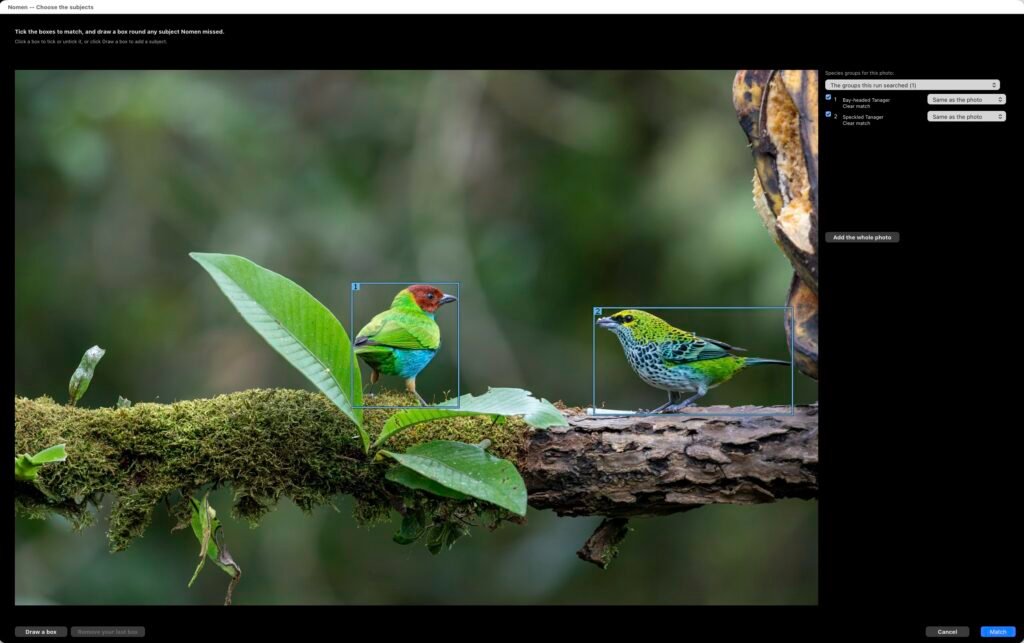
A heron with a fish in its bill. A goby sharing its burrow with a shrimp. A bee on a flower. When a photo has more than one subject, the top match may not be the one you wanted.
In Main subject and Every subject with Full review, press Not the subject(s) you wanted under the photo. Tick any of the numbered boxes, or draw your own, up to 8, and pick species groups for each: Birds for the heron, Fish for its catch. Nomen matches them all at once.
Your crop is what Nomen sees
Nomen now matches JPEG, PNG and TIFF files as Lightroom shows them, with your crop, rotation and edits, as it already did for raw files and PSDs. Crop in tight on a distant bird and that crop is what Nomen matches. Preparing these files is a bit slower, and a black-and-white version can match less well than the colour one.
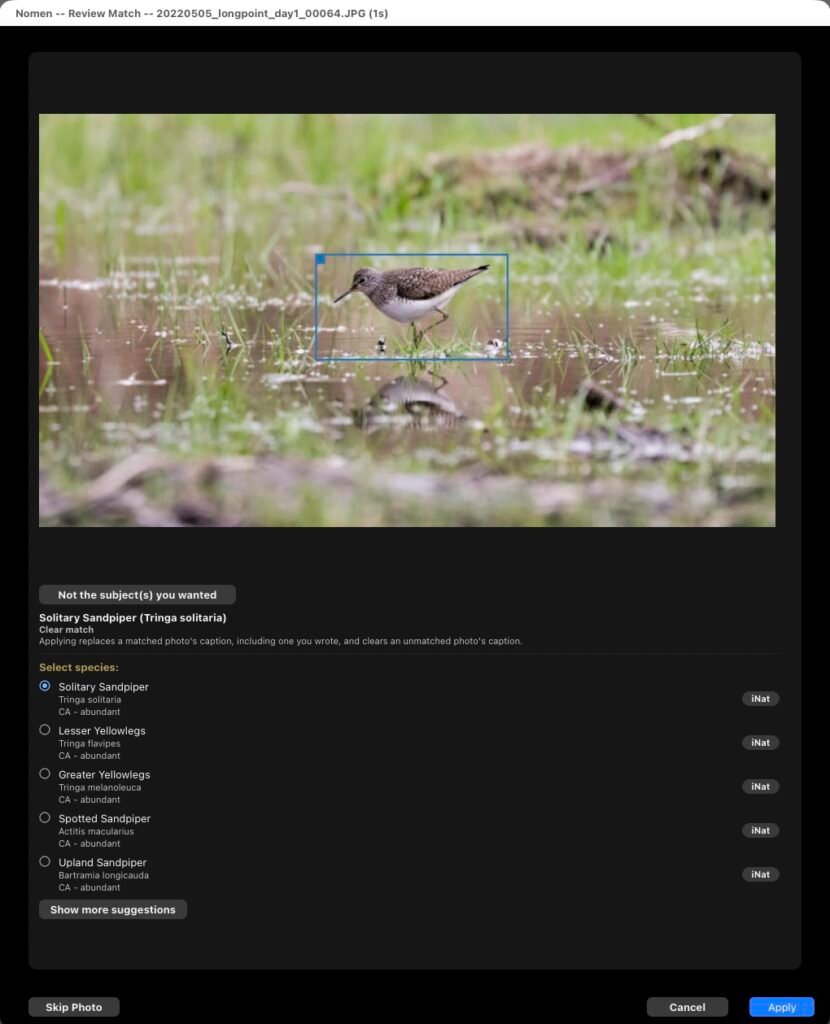
Main subject and Every subject also look at each subject in more detail now, unless it’s tiny in the frame.
Suggestions for species without an English name
Plenty of reef fish, nudibranchs, corals, fungi and plants have only a scientific name. When a match isn’t a Clear match, Full review in Main subject and Fast now shows up to two more suggestions with no English name, and Show more suggestions lists up to ten.
If you pick a suggestion other than the top match, the photo gets that species’ own Confidence and Rarity. Nomen writes no match statement or Colour label for it.
Regions in Quick setup, and one keyword per trip
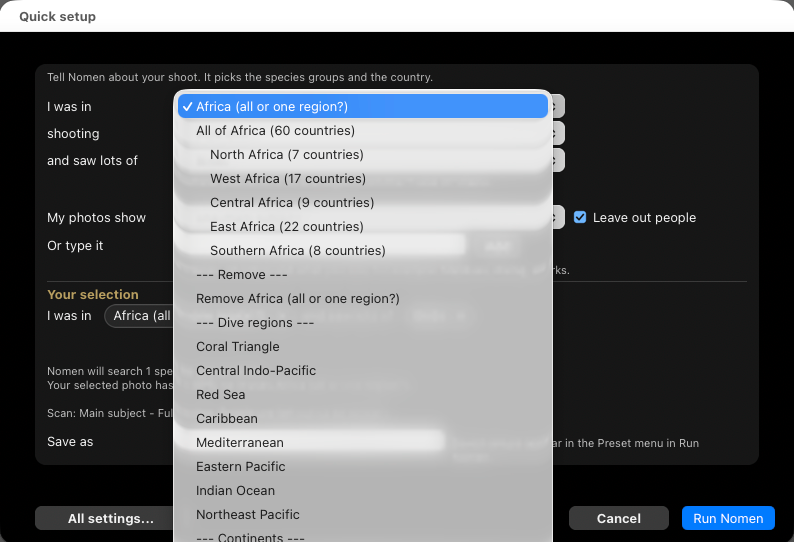
Shot a week in Kenya and Tanzania without GPS? In Quick setup, type or pick a continent (Africa, Asia, Europe, Oceania or the Americas), then choose all of it or one of its regions, indented under it in the I was in menu. Typing a region, such as East Africa, picks it straight away.
A matched photo without GPS then gets one keyword for the place you picked, such as Nomen > Region > East Africa, instead of one keyword per country. Run Nomen ticks that place’s countries; if you change those ticks, the photo gets one keyword per ticked country. The setting reads Tag photos with country or region under Nomen > Region.
Tidier keyword groups
Species that Nomen used to file under Common Names > Other in its keyword tree now go under their own group: chitons under Mollusks, millipedes under Insects & Arthropods, flatworms under Worms, bryozoans under Other Invertebrates, kelp under Algae & Other, skates and chimaeras under Fish, and fossil dinosaurs under Fossils. Caption hashtags follow the same groups, such as #Fish for a shark or #InsectsArthropods for a butterfly, and keep accented letters.
Refinements to bird matching
Update assets brings refreshed location data for birds whose scientific names changed recently, such as Double-crested Cormorant, Pelagic Cormorant and Cooper’s Hawk, so they rank as they should in the countries where they live. Species with only a few records in your country also get a fairer place in the list.
Smaller improvements
- If Nomen can’t look for subjects in your photos, it says so (Subject search could not start) and offers Repair to download any files it needs.
- A photo Nomen can’t get a preview of, such as an offline original, is skipped and the rest of the run carries on. Its Status Detail says why.
- Simple survey and Deep survey leave a photo unchanged when it has nothing they can match, such as one close subject that fills the frame. Use Main subject for those.
- The X on the progress bar now stops a run while Nomen prepares photos.
- Help explains what photo GPS does: it picks the country the photo was taken in.
How to update
- In Lightroom Classic, open File > Plug-in Manager, choose Nomen and press Update plugin.
- Then press Update assets if it’s offered. From 1.0.x it’s about 120 MB.
On 0.14.1 or older? Install 1.1 by hand once: download the zip, quit Lightroom and replace the whole Nomen.lrplugin folder. Your species data, models and license stay in place.
Every change is listed on the changelog.