Install Nomen. Start naming wildlife.
Download the plugin and activate your license. Everything after that happens inside Lightroom Classic.
Nomen.zip (about 19 MB). One download for Apple Silicon Macs and Windows 10/11.
Requires Adobe Lightroom Classic 13.0 or later. Intel Macs aren’t supported.
Matching engine: about 1.3 GB on a Mac, 1.7 to 2.1 GB on Windows. Species data: about 4.5 GB, one download that holds all 63 species groups. Nomen needs all of it to match.
You’ll need a serial key to activate it after installing. Buy a license.
What’s included
- Nomen.lrplugin for Lightroom Classic
- The matching engine and subject finder for Apple Silicon Macs and Windows, downloaded inside Lightroom with the species data
- Species data: all 63 species groups, land and aquatic, in one download of about 4.5 GB
- Windows: an optional DirectX 12 subject-finding bundle (about 330 MB). Subject finding is roughly ten times faster with it.
Up and running in four steps.
01
Download
Download Nomen.zip. The same file works on Apple Silicon Macs and Windows.
02
Install
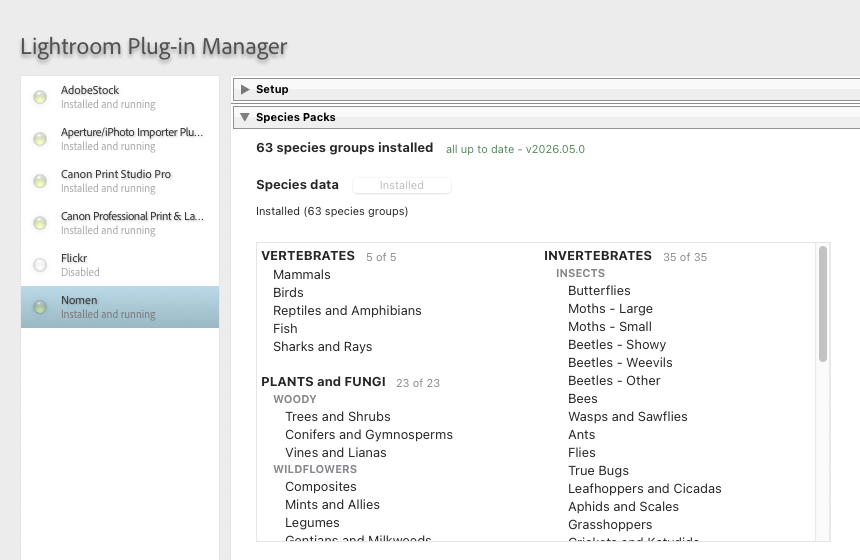
Unzip the download, then in Lightroom Classic go to File > Plug-in Manager > Add and select the Nomen.lrplugin folder. If the plug-in shows a non-running status, try removing and re-adding it. Restart Lightroom after making changes.
03
Activate and download species data
In File > Plug-in Manager > Nomen, open Setup and press Activate licence to enter your serial key. Then, in Species Packs, click Download on the Species data row. The matching engine downloads with it. If there isn’t enough free disk space, Nomen says how much the download needs before it starts.
04
Match
Select photos in the Library module and choose Library > Plug-in Extras > Nomen > Run Nomen on Selected Photos. On a new install, Quick setup opens the first time: say where you were, what you were shooting and what you saw, then click Run Nomen. Matching runs locally, without an internet connection.
Already using Nomen? Update in place.
- If you’re on Nomen 0.14.2 or later, open File > Plug-in Manager > Nomen and under Setup > Updates press Update plugin. It updates the matching engine too.
- If you’re on Nomen 0.14.1 or older, install the update by hand once. Update plugin in those versions updates Nomen but not its matching engine. Download Nomen.zip and replace the whole
Nomen.lrpluginfolder, then quit Lightroom fully and reopen it before matching. Nomen’s Update plugin handles later releases. - If Setup then says Species data is incomplete, click Download on the Species data row. Nomen can’t match until the download finishes. If you already have every species pack, there’s nothing to download.
- When Setup offers Update assets, press it. Nomen downloads only the files that changed and removes pack files the catalog no longer lists.
- If the Species Packs section offers Remove … pack files already in Species data, click it to free the space your older separate pack files take. Nomen asks before removing them.
- On Windows, in Species Packs, press Download on the DirectX 12 row (“Native DX12 GDino (Windows GPU)”), then quit Lightroom fully and reopen it.
Updates leave your species data and models where they are, and your license too, so you won’t need to re-activate. Never delete the Nomen assets folder, because that’s where your license lives.
For help installing Nomen, read the full documentation or contact support.